Web Browser and jweb
Max contains a web browser, implemented with the Chromium Embedded Framework (CEF). You can access this browser through the jweb object, which lets you embed a web browser in your Max patcher. This object has multiple versions for supporting streaming audio and video as well:
- jweb~: captures audio from whatever webpage you're on, letting you route that audio through your patcher
- jit.web: outputs the rendered page as a Jitter Matrix
- jit.web~: outputs a Jitter matrix as well as captured audio
- jit.gl.web: outputs the rendered page as a texture
- jit.gl.web~: supports texture and captured audio output
Finally, you can use the MaxBridge API to receive messages from Max, to send messages to the object outlets, to receive Jitter matrices, to get and set Max dictionaries, and to get/set Jitter matrices by name.
jweb
Create a jweb object to make an instance of an embedded web browser.

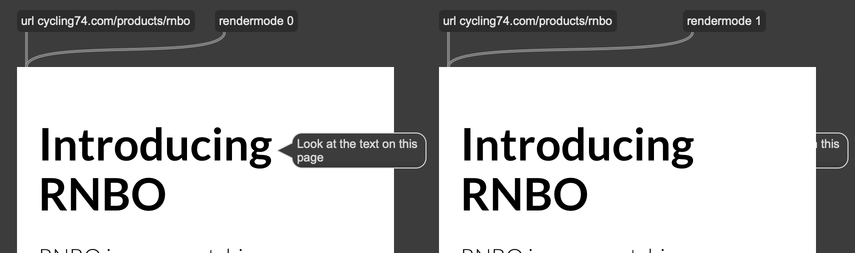
The @rendermode attribute determines whether the page is rendered directly in the object view, or whether it's rendered offscreen and then composited into the patcher. Onscreen rendering is slightly more efficient, but the jweb browser view will always render on top of other objects.
JavaScript Communication
You can communicate with the contents of a page loaded with jweb using the MaxBridge API through the max object. When jweb loads a page, it adds this object to the global window object. You can use this to determine, from JavaScript, whether the page was loaded in Max.
if (window.max) {
  console.log("This webpage is loaded in Max, from a jweb object");
} else {
  console.log("This webpage is not loaded in Max.");
}
Asynchronous messaging
It's important to note that CEF runs in a separate process from the rest of Max. If you send a message to a jweb object, it will be handled asynchronously. Any messages that come out of jweb from a call to window.max.outlet will always be handled on the low-priority queue. For the same reason, MaxBridge API functions that fetch data from Max, like getJitterMatrix or getDict, will also work asynchronously.
Receiving Messages
Use the bindInlet function to receive messages from Max inside a JavaScript callback.
window.max.bindInlet("something", () => {
  /*
   * code here will be executed whenever jweb receives
   * the symbol "something"
   */
});
The bindInlet function can also register a callback that will accept arguments.
window.max.bindInlet("addNumbers", (a, b) => {
  console.log(`${a} plus ${b} is ${a + b}`);
});
You can use the spread operator to handle lists, or messages with a variable number of arguments.
window.max.bindInlet("printLength", (...values) => {
  console.log(`The list has ${values.length} elements`);
});
Sending Messages
Use the outlet function to send messages to the outlet of the jweb object.
// output a string
window.max.outlet("foo");

// output a list
window.max.outlet("foo", 1, 2);

// output contents of array with prepended "foo" message
let ar = [1, 2, 3, 4];
window.max.outlet.apply(window.max, ["foo"].concat(ar));
You can also send a message out of jweb using the href attribute of an anchor tag. Note that a message send this way will be output with the symbol "maxmessage" prepended. The contents of the message should be separated by the "/" character.
<a href="maxmessage:name/param1/param2"></a>
Interacting with Max Dictionaries
Use getDict to get the contents of a Max dictionary.
let nestedValue;

// access dictionary
window.max.getDict("dictName", (dict) => {
  // dict is a JavaScript object. Dictionary keys
  // will be JavaScript object properties, so you
  // can fetch values using typical JavaScript syntax.
  nestedValue = dict.a;
});
Use setDict to set the contents of a dictionary.
let obj = {
  a: "1",
  b: "2",
  c: "3",
};

window.max.setDict("dictName", obj);
There is no special function to change just one value of a dictionary. To update a dictionary, call getDict followed by setDict.
window.max.getDict("dictName", (dict) => {
  // Increment a numerical value
  dict.inc = dict.inc + 1;

  window.max.setDict("dictName", dict);
});
Jitter Matrices
You can read/write Jitter matrices as well. The implementation uses shared memory to transfer the matrix data between processes, and this transfer happens impressively fast. There are two approaches:
- using bindJitterMatrix and bindJitterImage to stream matrices received via the
jit_matrixmessage - similar to dictionaries, using the window.max.getJitterMatrix and window.max.setJitterMatrix functions
For matrix streaming, register a handler to receive Jitter matrices pushed from Max via the jit_matrix message. These are received as either raw binary matrices, or as images. Both are main-frame only (not exposed in iframes).
// "binary" — verbatim matrix
window.max.bindJitterMatrix(onMatrix, opts);
// "image"  — 4-plane char → RGBA
window.max.bindJitterImage(onImage, opts);
If you call bindJitterMatrix, your onMatrix handler function will receive the contents of the matrix in its first argument. That argument object has type, planecount, and dim properties, as well as a data property, containing the matrix data itself.
Use the bindJitterImage function if you want to register an onImage handler instead. This function will be called with an argument containing width, height, and data properties. Image data is pre-swizzled from Jitter's ARGB to RGBA, so it drops straight into a canvas or webgl context with no per-pixel work.
function onImage(image) {
  ctx.putImageData(new ImageData(image.data, image.width, image.height), 0, 0); // 2D
  gl.texImage2D(
    gl.TEXTURE_2D,
    0,
    gl.RGBA,
    w,
    h,
    0,
    gl.RGBA,
    gl.UNSIGNED_BYTE,
    image.data,
  ); // WebGL
}
Additionally both variants include metadata properties containing timing and other performance metrics. Check the MaxBridge API Reference for more details.
timestamp: producer send time, wall-clock ms (Date.now()-comparable)seq: monotonic source frame numberreceived: performance.now() time the moment the frame arrives from Maxdropped: frames discarded since the previous delivered frame
The optional opts? argument allows you to configure the received matrix queue (each handler has its own queue).
| option | default | meaning |
|---|---|---|
| queue | 8 | max frames buffered for this binding before dropping |
| drop | 'oldest' | when full: 'oldest' discards the stalest queued frame (lowest latency); 'newest' rejects the incoming one |
Alongside the streaming receive API, a page can copy matrix data to and from a named Max matrix on demand. This is similar to getDict/setDict, but for matrices instead of dictionaries. You address a matrix by the name it's registered under in Max (e.g. a jit.matrix mybuf in the patch). Both calls are main-frame only (not exposed in iframes).
window.max.setJitterMatrix(name, m) copies a matrix from the page into the named Max matrix.
window.max.setJitterMatrix("mybuf", {
  type: "char", // "char" | "long" | "float32" | "float64"  (default "char")
  planecount: 4,
  dim: [640, 480],
  data: myUint8Array, // a TypedArray (or ArrayBuffer) of samples
});
The named matrix is resized to the shape you describe (type / planecount / dim), then your data is copied in. It's a no-op if a name isn't a registered matrix or the resize can't produce exactly the shape you asked for. The target matrix has to already exist in the patch.
window.max.getJitterMatrix(name, callback) reads the named Max matrix and hands a copy back to the page.
window.max.getJitterMatrix("mybuf", function (m) {
  if (!m) return; // matrix wasn't available — see below
  // m.type / m.planecount / m.dim describe m.data
  console.log(m.dim, m.data.length);
});
The callback is called exactly once, with either an object shaped like the received matrix core fields or null if the matrix couldn't be read (the name isn't registered, it has no data, or it's a type the bridge doesn't support). Always guard for null before touching the result. The read is asynchronous: it happens over in Max and the result arrives a little later, which is why it's a callback rather than a return value.
Debugging
You can debug a webpage loaded in jweb using Google Chrome. After you open a remote debugging port in Max, each jweb instance will be visible as a separate device in the Chrome debugger. When you open the instance in Chrome, you'll be able to view the JavaScript console, set breakpoints, and monitor network traffic.
First, make sure to enable a debug port in Max. From Max's preferences, enable remote debugging by picking a port. Chrome defaults to browsing devices on port 9222 and 9229, so these are good choices.
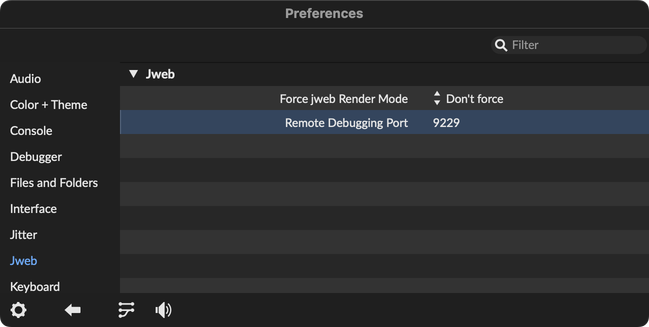
You'll need to restart Max for these changes to take effect.
Now, load the webpage you want to debug in jweb.
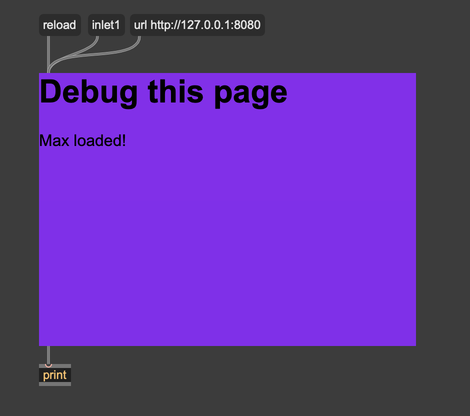
With the webpage loaded in jweb, open Chrome and navigate to chrome://inspect/#devices.
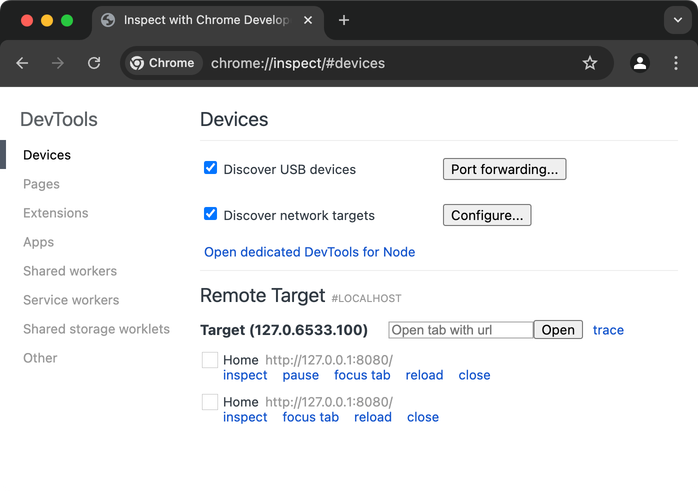
Click "inspect" under the page that you want to debug. Chrome will open a new window to debug your page. (If you don't see your jweb instance listed, it might be because you set Max to a jweb debug port other than 9222 or 9229. Click Configure... to enable your desired port.)
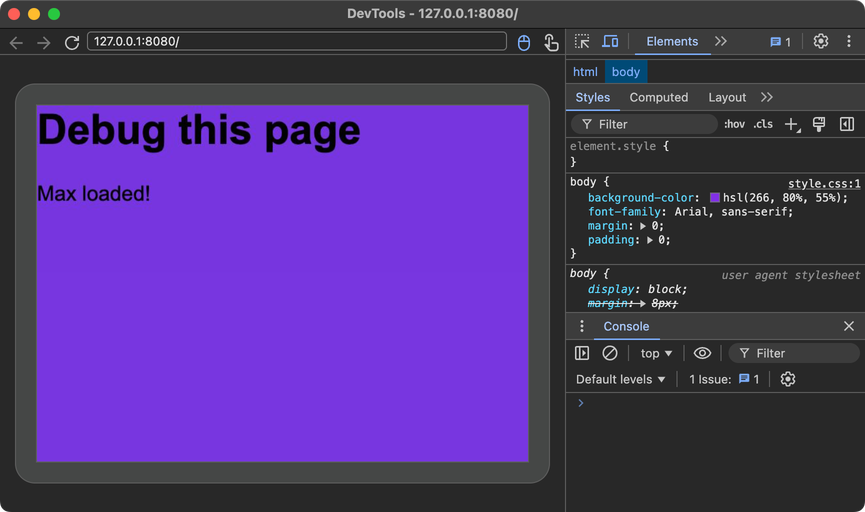
From here, you can debug this webpage just like you would any other. Look for guides releated to web development and JavaScript programming for more information.