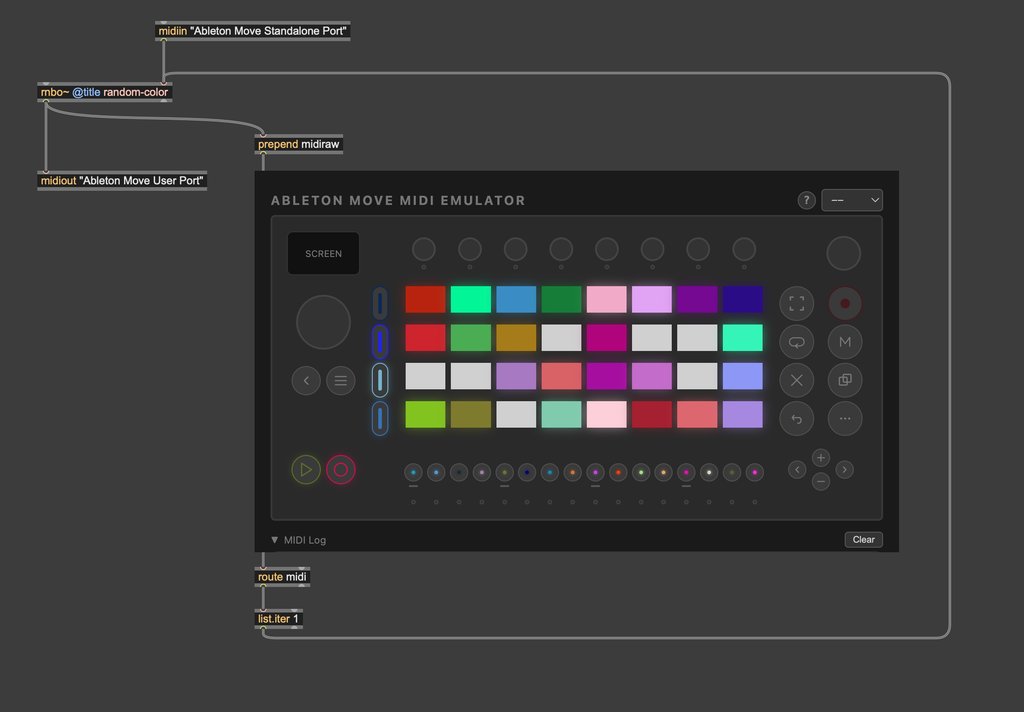
Getting Started with RNBO Move Takeover
In this series of guides, we'll look at how to customize the sound and behavior of the Move using RNBO Move Takeover. If you want to read more about what RNBO Move Takeover is, or about how to install it, you should check out these articles:
High Level Concepts — RNBO and the Graph Editor
Let's start with some high level concepts. If you think about what you're normally doing when you're working with Max, you're creating mappings between the various inputs that your computer has to its outputs. Those inputs could be your computer keyboard, external USB keyboards, microphones, webcams, and more. Outputs might be your computer's speakers, an external audio interface, a projector, or many other things.
When we're building custom behavior for the Move, we're doing the exact same thing. We're creating mappings between inputs on the Move—pads, encoders, the microphone—and outputs, like the LEDs and the display. To do this, we use both RNBO as well as the Graph Editor. In general, we use RNBO to define the logic of various behaviors. A RNBO patch might define a behavior like "when this patch receives a MIDI note, trigger an ADSR envelope." However, in order to actually connect that RNBO patch to the inputs and outputs that the Move provides, we use the RNBO Graph Editor.
We'll look at all of this in detail soon. For now, just keep in mind that we'll be working both with RNBO as well as the Graph Editor as we customize the Move.
Getting the Templates
In order to make it easier to work with the Move, we've created a number of template patches. These are bundled into a Max package in this GitHub repository.
Installing the Package
You can install the package either by cloning the repository into your Max Packages folder, or by downloading the repository as a .zip archive and unzipping into that same folder. On Windows, the Max Packages folder is at %HOMEDRIVE%%HOMEPATH%\Documents\Max 9\Packages. On other operating systems, the packages folder is at ~/Documents/Max 9/Packages.
Viewing the Templates
After you've installed the RNBO Move Templates package, you should see a new entry in the Max Extras menu, called "RNBO Move Templates". Click on this entry to open the Move Templates launcher patch.
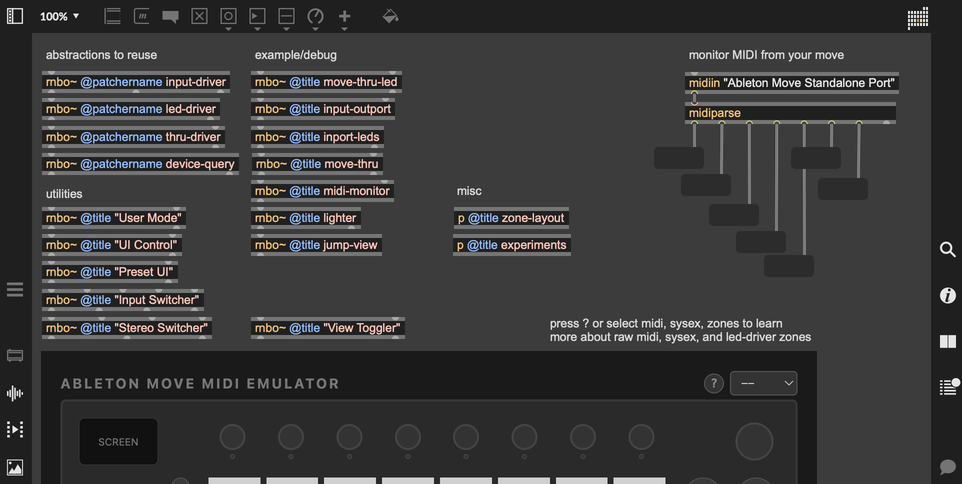
Now that we've got the templates installed, let's take a look at how to use them.
Activating the Pads
Let's see if we can change the color of the pads on the Move. We'll start by working with the Move Simulator. Then, we'll change the color of the pads on the physical Move. Finally, we'll upload the patch onto the Move, so we can run our patch without being tethered to Max.

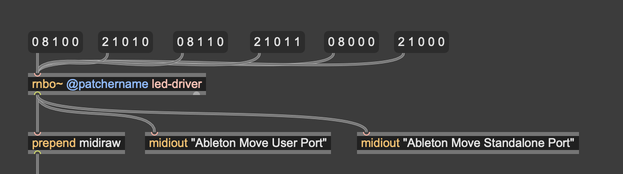
With Max open, create a new patch. Copy the Ableton Move MIDI Emulator from the templates launcher into your patch. Then, copy the abstraction [rnbo~ @patchername led-driver] into the patch. You should have something like this:
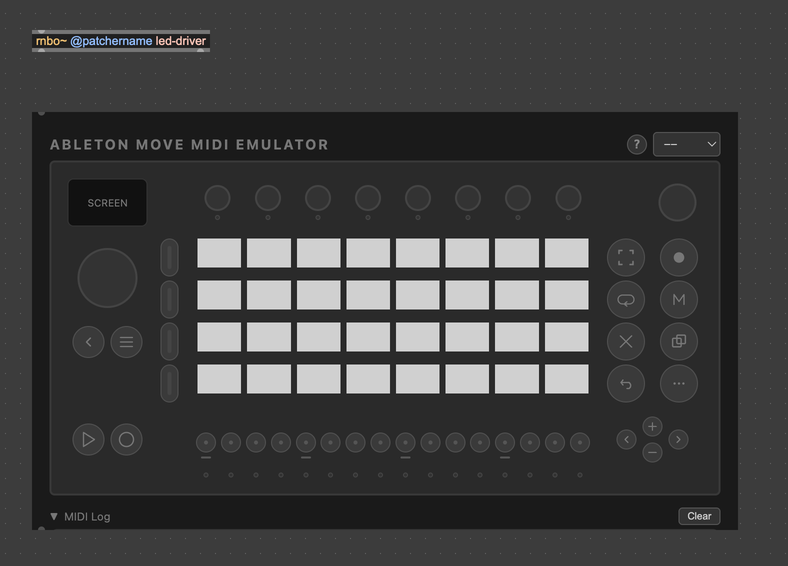
The RNBO abstraction led-driver makes it simpler to control the LEDs on the Move. It turns easy to understand messages into the MIDI byte stream necessary to turn the Move's LEDs on and off. If you double-click on the led-driver abstraction, you can see how these messages should be formatted.
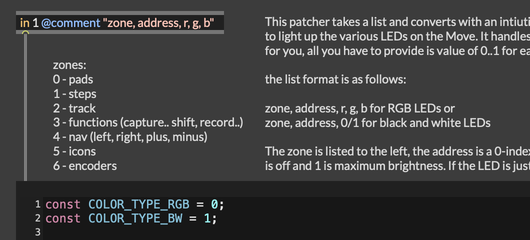
For example, the message 0 8 1 0 0 will set the color of the pad with index eight (the first pad on the second row) to red. The message 2 1 0 1 0 will set the color of the track indicator with index one (second from the bottom) to green. Try setting the color of different LEDs on the Move Emulator by sending messages through the LED driver abstraction. You will need to prefix raw MIDI messages going into the Move Emulator with the midiraw symbol.
Controling the Physical Move
If you have a physical Move, you can use the exact same mechanism to control the LEDs on the Move itself. In the same way that you can send MIDI messages to the Move Emulator to control the state of its LEDs, you can send MIDI messages to the hardware Move to turn its light on and off.
To see how, let's go back to Max. First, make sure that your Move is connected to your computer via USB C. Make a midiout object with the port "Ableton Move User Port". This is a special, reserved port that we can use to control the Move directly. Now, route MIDI messages coming from the led-driver abstraction into this midiout object. Note that we don't need to prepend the midiraw symbol here. When you send a message to the led-driver abstraction now, you should see the lights on your physical Move illuminate.
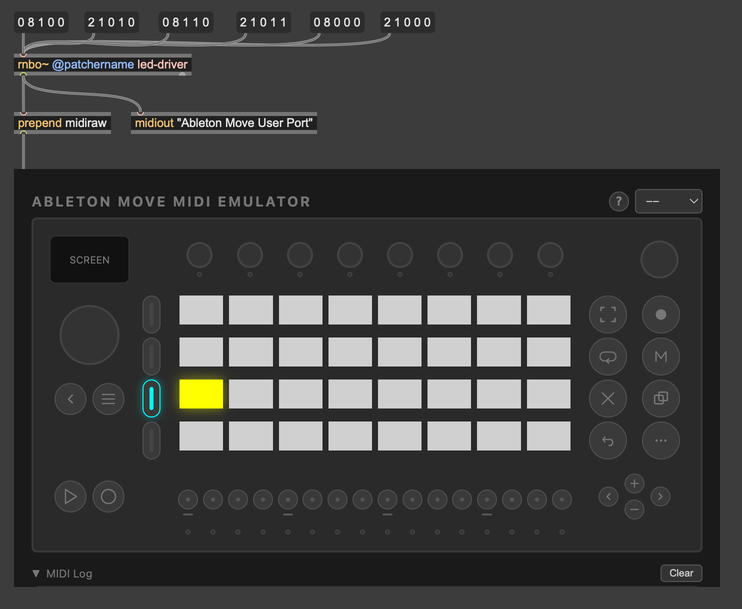
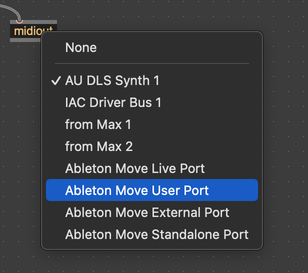
If you don't see anything happening on your Move, verify that you're connected over USB, and that Max sees the MIDI port named "Ableton Move User Port". If you double-click on a midiout object, you should see this port listed among other Move-specific ports.
Black and White LEDs
If you experiment long enough with the above patch, you may notice that certain LEDs don't seem to work as expected. They will activate/deactivate in the emulator, but not on the physical Move. In particular, sending MIDI messages straight to the Ableton Move User Port can't enable/disable the black and white LEDs on the Move. This is because these lights are controled with MIDI note and CC messages, not the sysex messages that "Ableton Move User Port" is expecting.
To control these lights, we need a slightly more complex setup. First, create a second midiout object in Max. Set this object to use the port named "Ableton Move Standalone Port".
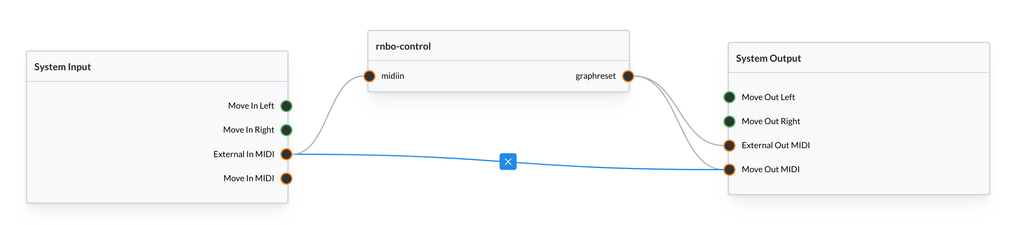
Now, use the Graph Editor to connect "External In MIDI" to "Move Out MIDI". This routes MIDI CC and Note messages from the Move's external MIDI input to it's internal LED controller. We're jumping ahead a bit, but you can read more about how to use the graph editor below.
Receiving Input from Move
Now that we've seen how to use the "Move Out MIDI" port to control the LEDs on the physical Move, let's make a RNBO patch to control all the LEDs, and upload it to the Move. We'll start by building our behavior using the Move Emulator, then upload it when we're ready.
Let's start with something very simple: Whenever the user presses any button on the move, the corresponding LED should light up. We've already used the led-driver abstraction to control the LEDs on the Move. Now, we just need some way to get input from the Move.
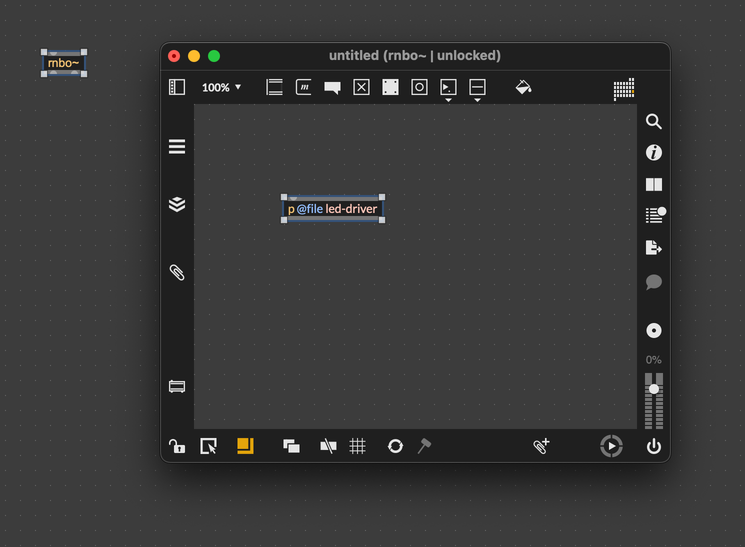
Let's start by creating a new patch. Next, let's create a rnbo~ object. From now on, we'll put the led-driver patch into rnbo~ as a RNBO abstraction. That way, we'll be able to export our logic using RNBO. Since you have the RNBO Move Templates package installed, you should be able to open the rnbo~ patcher, then type p @file led-driver into an object box to get the abstraction.
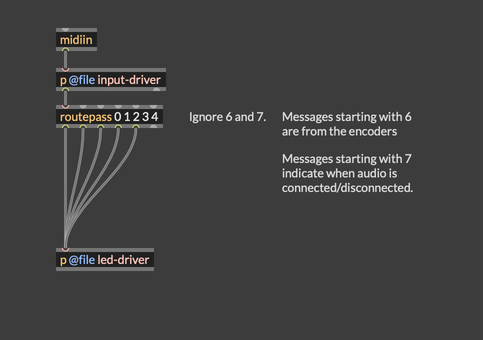
Time to get input from the Move. There's another useful abstraction here, this one called input-driver. It's very similar to the led-driver abstraction, except it works in the opposite direction. Instead of translating easy-to-understand messages into MIDI, it receives a raw MIDI stream from the Move, and outputs nicely formatted lists.
After adding an input-driver abstraction to our RNBO patcher, we just need to add a few more objects. First , we need a midiin object so that the RNBO patcher can receive MIDI. This will be the raw MIDI stream that input-driver can process. Next, we need a routepass so that we can ignore addresses 6 and 7 (address 6 is for encoders, and address 7 indicates when audio is connected/disconnected). Finally, we just need to connect everything together. You should end up with something like this:
This is all we need to do in RNBO. Now, in the top-level Max patcher, we need to connect this RNBO patcher to the correct MIDI streams. Starting with the emulator, we can connect RNBO like this:
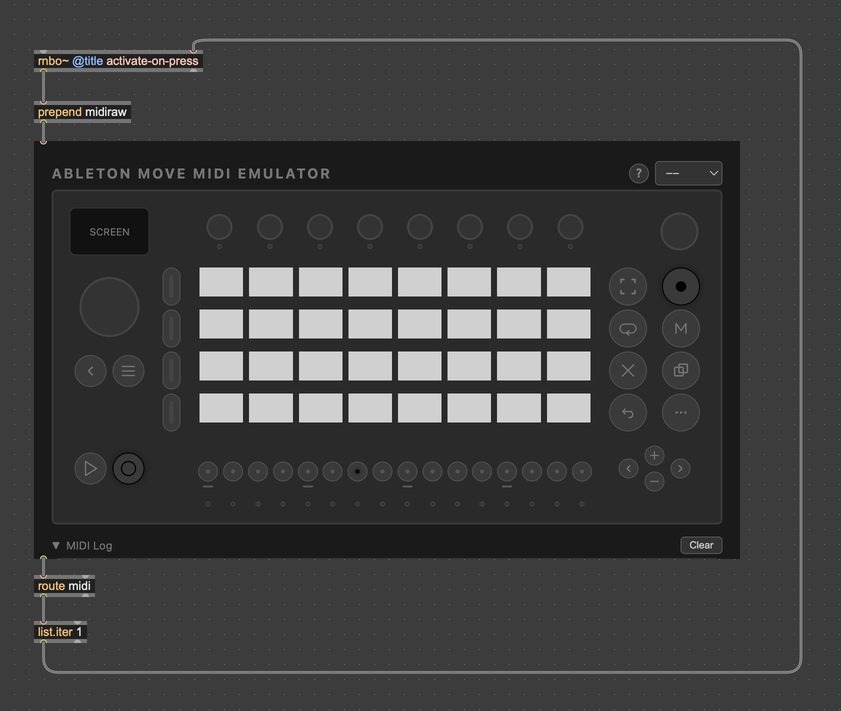
Note how the MIDI output from the emulator is routed back to the MIDI input of the rnbo~ object. Now, when you press any button in the emulator, you should see the corresponding LED light up red. The color is red and not white for RGB LEDs because we're only supplying one value—red—when a button is pressed.
Right now this is all running purely in Max using the Move emulator. We can control the lights on the Move directly using midiin and midiout. First, we need a midiout object to send MIDI messages to the Move. Next, we need a midiin object to get MIDI from Move. Connect everything like so:
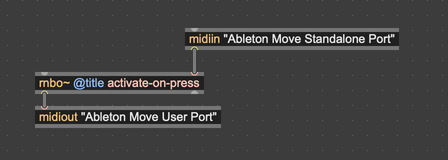
Now you press buttons on your Move and... nothing happens? What went wrong?
If you add a print object to your patch, receiving the MIDI byte stream from the midiin object, you'll see that no MIDI data is getting into Max from Move. This is because we haven't configured Move to route MIDI from button presses to its external MIDI output. To define this behavior, we need to use the Graph Editor.
Routing MIDI Using the Graph Editor
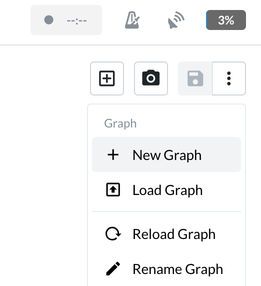
Let's make sure that the Move is set up to route MIDI from button presses to its external output. Start by powering on your Move and starting RNBO Takeover Mode. Next, open up your web browser and navigate to http://move.local:3000/. Create a new empty graph by clicking the three-dot menu in the top-right and selecting New Graph.
In the new graph, we need to make one important connection. We need to connect Move In MIDI to External Out MIDI. This is telling the Move to make an internal connection: whenever Move generates a MIDI message, for example when a pad is pressed, route that message to the Move's external MIDI output.
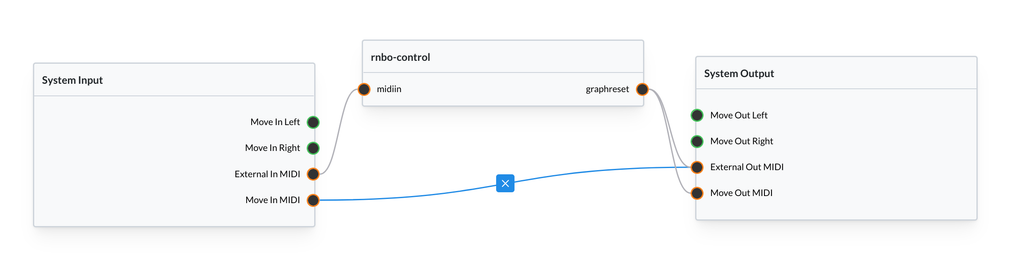
Once you've made this connection, you should see MIDI messages showing up in Max. If your patch is set up to route MIDI into the rnbo~ subpatcher we've been building, you should see your pads turn red when pressed.
Exporting and Running the Patch
Our patch is very simple, but let's try exporting to the Move so we can see how things will work once we're running fully independently without Max being involved. First, open up the activate-on-press RNBO patch that we've been working on. Select move.local as your export target, and press Export to Selected Target.
In this case, it's probably better not to select Run on Selected Target. This would create a brand new graph and make some automatic connections. For a MIDI synthesizer, this can be a useful option, but it's not what we want here.
Once the export has finished, you should see "activate-on-press" among the available nodes when you press Add Node in the Graph Editor.
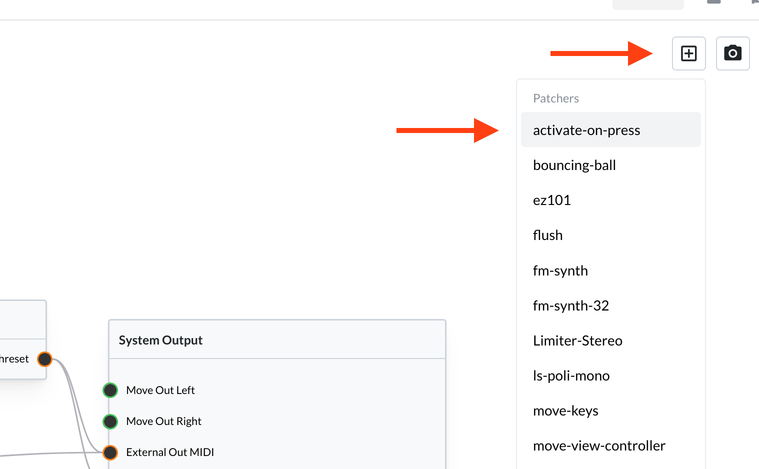
Now, add this node to the graph. In order for this node to work as expected, you'll need to make two more connections. First, you'll need to connect *Move In MIDI" to the MIDI input of the node. This will pass generated MIDI events from Move to the RNBO node. Next, you should connect the MIDI output of the node to Move Out MIDI. This is a port for passing MIDI events from RNBO back to the Move firmware itself. This is the way to control LEDs on the Move.
| MIDI Port Name | Function |
|---|---|
| External MIDI In | MIDI sent from another device to the Move |
| External MIDI Out | Send MIDI from the Move to another device |
| Move In MIDI | MIDI messages coming in from the Move itself, for example when a pad is pressed |
| Move Out MIDI | Send MIDI here to be interpreted by the Move itself, for example to control the state of the LEDs. |
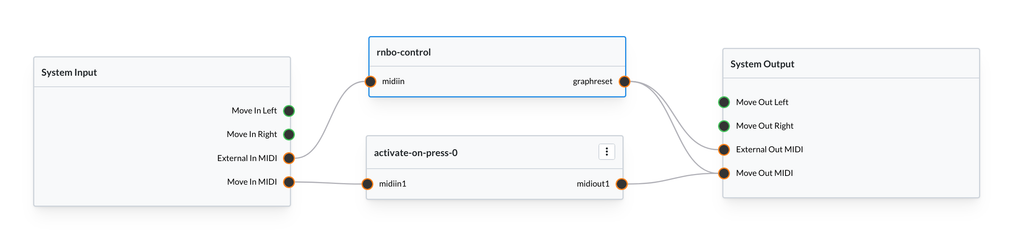
With the node connected this way, you should see pads and buttons light up when pressed, even if you disconnect your Move. It's nothing fancy, but you are officially running custom code on the Move hardware.
Adding a Little More Complexity
Let's make things just a little more interesting. Now, when the user presses anything on the Move, let's set the corresponding LED to a random color. Strictly speaking, we'll only be able to do this for RGB LEDs. For the black and white LEDs, let's just leave the current behavior, where these just illuminate the light whenever it's pressed.
Here's an example of how to design this behavior. Note that among LEDs in the "function" address space, some are black-and-white, and some are color.
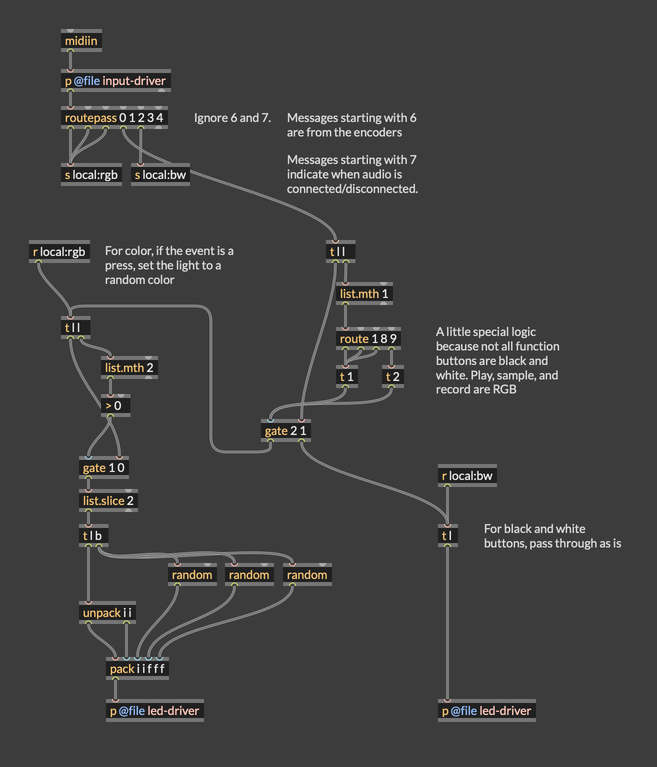
Here's the full patch. Try to export it and run in on the Move, and see if you can get the LEDs to behave the way you expect.