Building a Step Sequencer and More
In the last guide, we saw how to parse input from the Move, and how to change its appearance by turning LEDs on and off. With that basic understanding, we're ready to start talking about building more complex behavior. The general pattern looks something like this:
- Parse MIDI using the
input-driverabstraction - Design some custom logic using RNBO
- Produce MIDI, either to change the appearance of the Move, or to send audio/MIDI downstream to the next node.
The simplest place to start is with a classic: a simple step sequencer.
Starter Patch
Let's start with a simple template for prototyping for the Move.
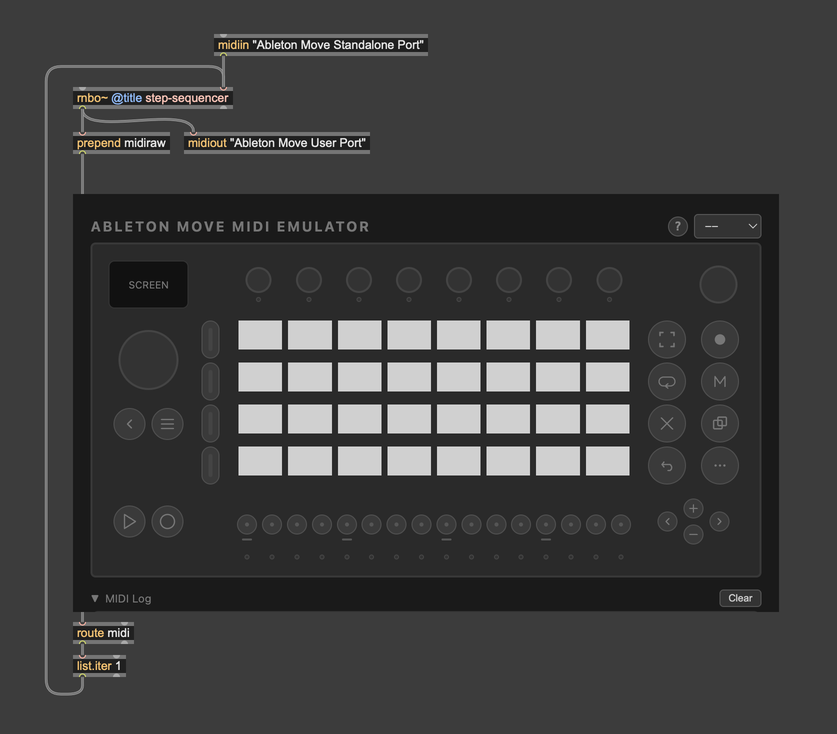
This basic setup should look familiar to you. We route the MIDI output from the rnbo~ object into the Move emulator, being sure to prepend the midiraw symbol. We also route MIDI output from the emulator back to the rnbo~ object. This simulates the signal flow configuration that we're going to set up on the move. Button presses go to the device logic defined in RNBO, which in turn updates the LEDs and drives downstream processing.
At the same time, we use the midiin and midiout objects to route MIDI to and from the physical Move, if one is connected. Remember that if you want a button press to send MIDI to the Ableton Move Standalone Port, you'll need to configure that behavior in the Graph Editor, as we saw in the prevous guide.
Building the Sequencer
Open up the RNBO subpatcher. If you copied the compressed patcher from the above image, you'll see nothing more than a MIDI input and output.
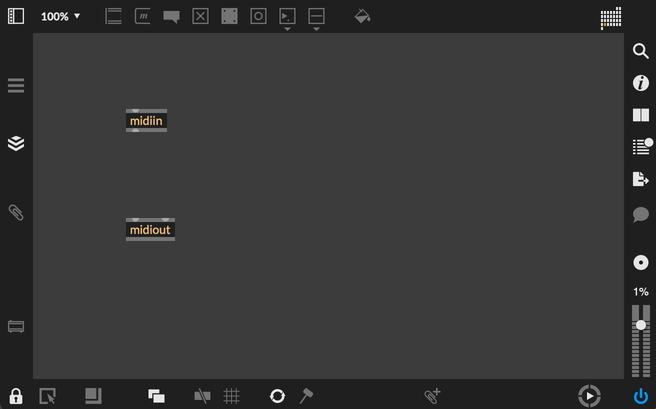
What do we need to build a step sequencer? We need five basic parts:
- A counter that will count up at some regular interval, wrapping back to zero when it reaches the limit
- Something to receive input when the user presses the pads
- Logic that will store the state of the pads as "on" or "off" as the user presses them.
- A component that can control the LEDs on the Move, so the user can visualize the current state
- MIDI output, so that note events can drive downstream processes
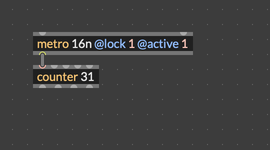
Let's start with the counter. For this, we can use a locked metro object, with an interval defined in Time Value Syntax.
Now, what about receiving input from the user? We know how to do this already: we can use midiin in conjunction with the input-driver abstraction to read inputs from the Move. After that, we can use a route object to filter for pads only, an a stripnote to send a message when a pad is pressed, but not released.
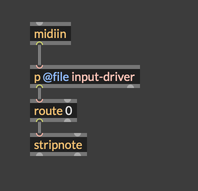
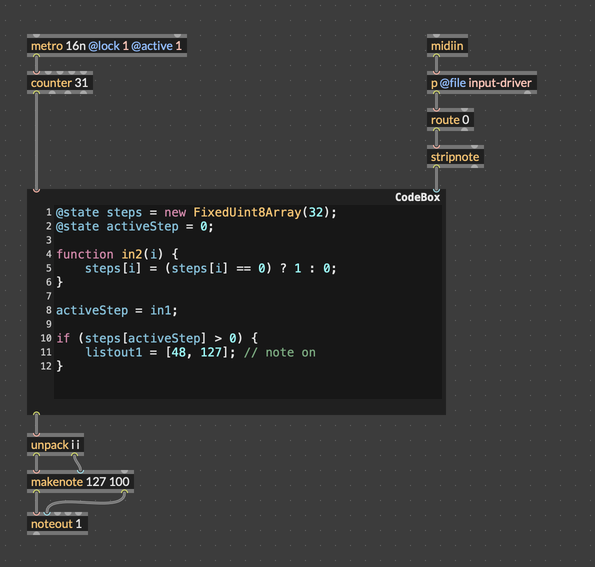
Now we can think about the logic itself. Basically, whenever the user presses a pad, we want to toggle the state of that pad, either from off to on, or from on to off. Then, as the current step advances, we want to trigger a MIDI note output. That logic could look something like this:
@state steps = new FixedUint8Array(32);
@state activeStep = 0;

function in2(i) {
  steps[i] = (steps[i] == 0) ? 1 : 0;
}

activeStep = in1;

if (steps[activeStep] > 0) {
  listout1 = [48, 127]; // note on
}
As you can see, this code will send a note on event out of the first outlet whenever the current step reaches an active element in our sequencer. To combine this with a note off, we can use a makenote object. Putting everything together so far, we have our basic step sequencer.
There's just one thing missing: we have no way to control the lights on the Move. What does that logic actually look like? Conceptually, there are two things that we need to do. We need to change the color of the active step, and we need to change the color of any parts of the sequence that the user has activated. We should also have some special color for when both are true. Putting it all together, the logic is pretty straightforward: loop through all the pads, and change the color of each one depending on the state of the sequencer. An updateLights() function could look like this:
function updateLights() {
  for (let i = 0; i < 32; i++) {
    let red = (i == activeStep) ? 1 : 0;
    let blue = (steps[i] > 0) ? 1 : 0;
    listout2 = [0, i, red, 0, blue]; // combine red and blue to make purple
  }
}
When do we call this function? We call it whenever the state of our sequencer changes, or when the user presses a pad, or the counter advances. The logic for our step sequencer could look like this:
@state steps = new FixedUint8Array(32);
@state activeStep = 0;

function updateLights() {
  for (let i = 0; i < 32; i++) {
    let red = (i == activeStep) ? 1 : 0;
    let blue = (steps[i] > 0) ? 1 : 0;
    listout2 = [0, i, red, 0, blue]; // combine red and blue to make purple
  }
}

function in2(i) {
  steps[i] = (steps[i] == 0) ? 1 : 0;
  updateLights();
}

activeStep = in1;

if (steps[activeStep] > 0) {
  listout1 = [48, 127]; // note on
}

updateLights();
To wrap it all up, we just need some way to turn these light-control lists into MIDI. This is easy, we can just use the led-driver abstraction. Finally we have our completed sequencer.
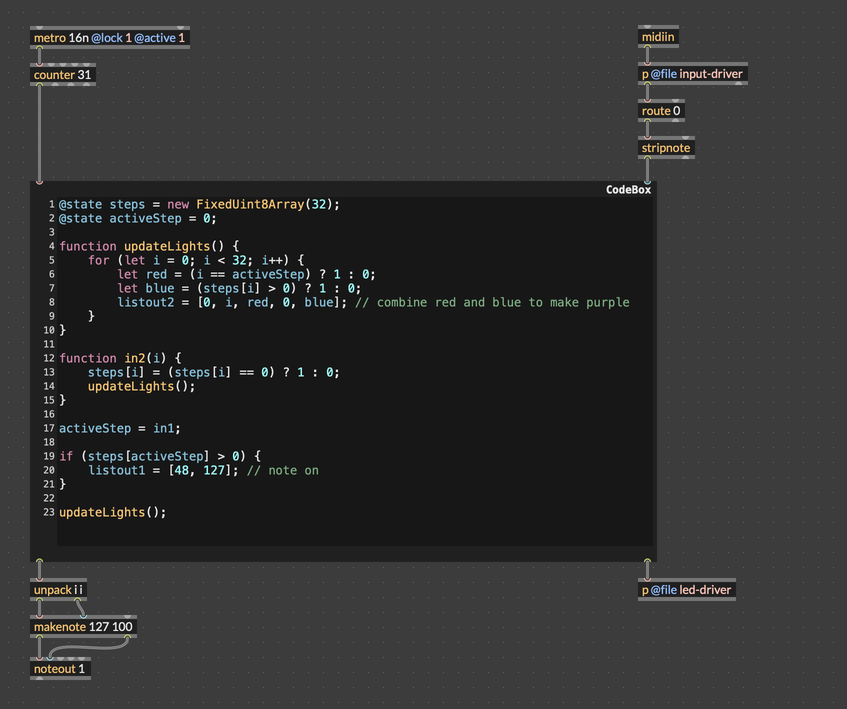
You should be able to verify that this sequencer works using the Move emulator, although remember that the Max global transport will need to be running to start the locked metro object. If you have a physical Move, you should be able to see the step sequencer behavior working there as well. If you see the active step advancing, but you aren't able to change the state of the sequence by pressing pads, you may need to connect "Move In MIDI" to "Move External MIDI" in the graph editor. See this section in the previous article.
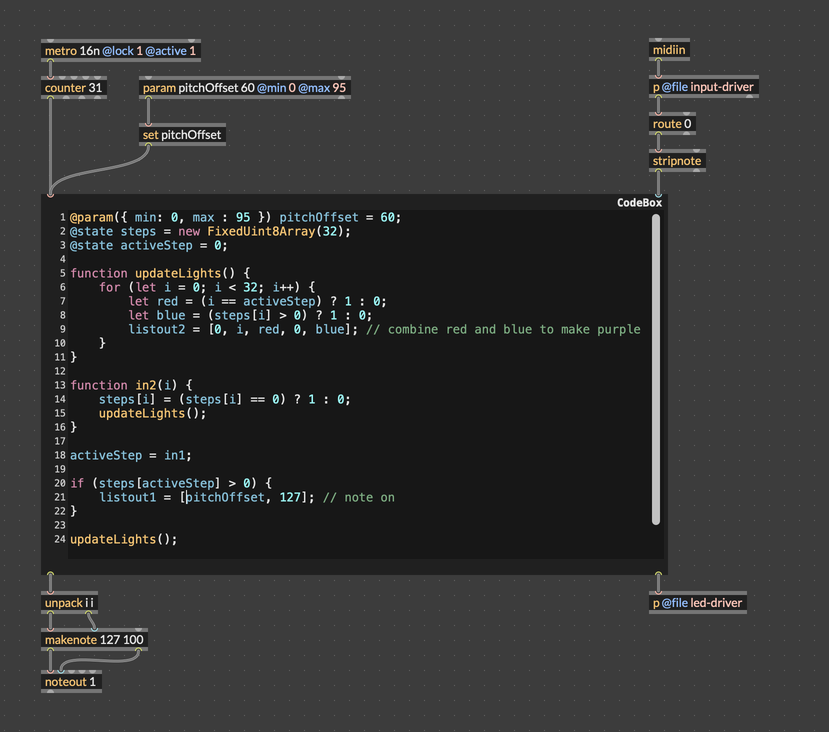
If you try to route MIDI notes from the RNBO device to a synthesizer, they may be lower pitch than you want. If you like, you can add a pitch offset parameter to address this.
Using the Sequencer on the Move
If you have a physical Move, try exporting this patch. When it's done, use your web browser to go to http://http://move.local:3000/. Now, you can add a step-sequencer node, and then patch it into the graph.
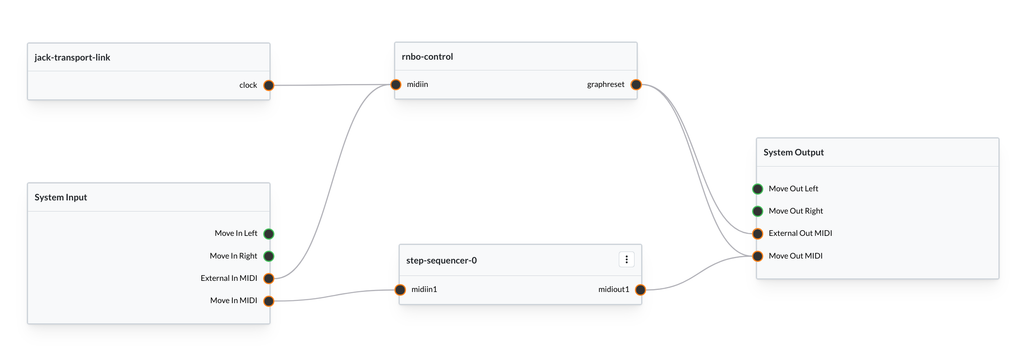
Before you see anything, you'll need to start the transport (you can do this using the metronome icon in the top-right of the graph editor). After starting the transport, you should see the red active step indicator advancing across the pads. Pressing a pad should activate it.
Starting and stopping the transport using the graph editor is annoying. In the RNBO Move Templates launch patcher, you'll find a RNBO abstraction named "UI Control". This abstraction provides some basic interaction functionality, including starting/stopping the transport when the Move Play button is pressed. Try exporting this patch and adding it to your graph.
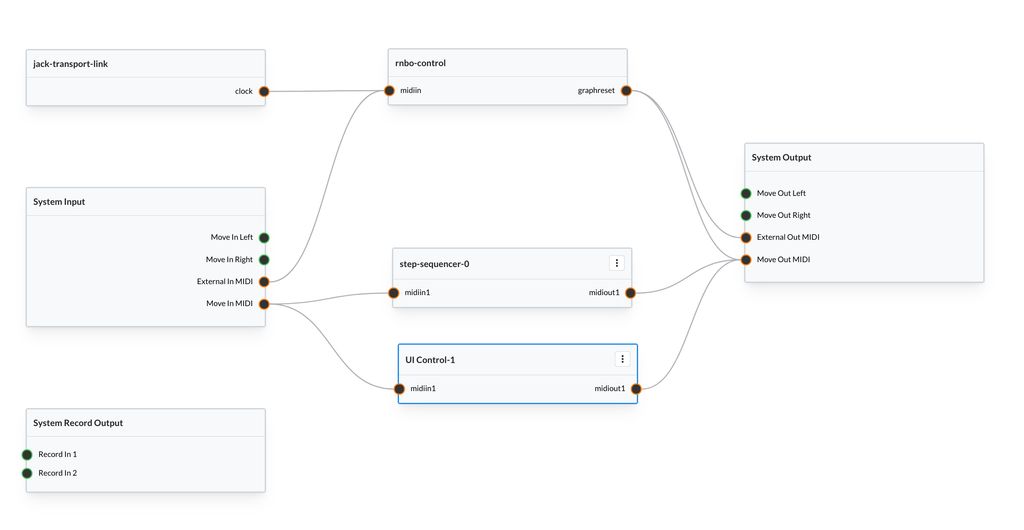
If you save and reload the graph (reload the graph from the Graph Menu, don't reload the page), you should see the Play and Record buttons on the Move illuminate. Pressing Play now starts and stops the sequence.
If you want to trigger some sound, you can put a synthesizer downstream of the step sequencer. The RNBO Move Takeover ships with some built-in synthesizers that you can use. Try putting an fm-synth node downstream of the step sequencer.
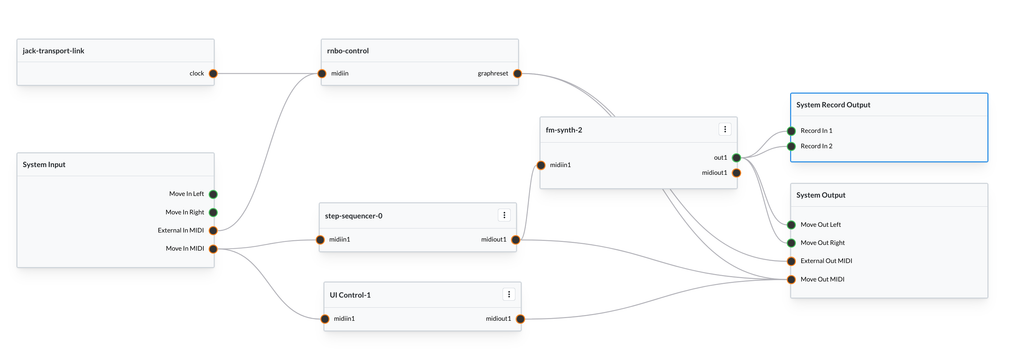
That's it! It's a fully-functional step sequencer. Granted it's pretty basic, but this is a fully customized music interface, running on the Move.
Exporting the Finished Graph
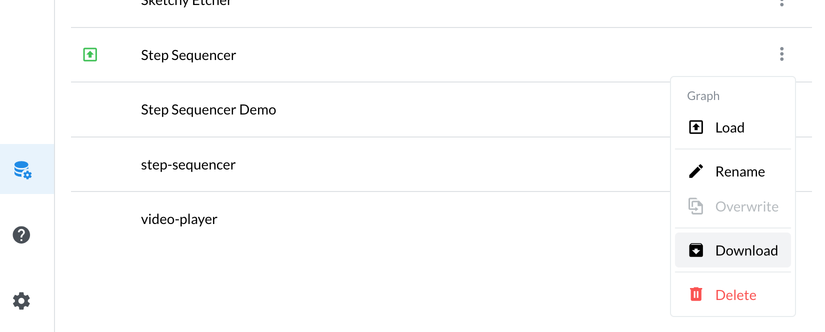
Let's export this amazing synthesizer. In the Graph Editor, click on the Manage Resources icon in the left toolbar. Find the current graph (you'll need to have saved it), and click the three-dot menu to the right to find the Download option. This should save a .rnbopack file to your computer. Anyone with RNBO Move Takeover can import and run this graph. They don't need Max or RNBO, just a Move with RNBO Move Takeover installed.