Drawing Images with Spritesheets
So far in this series, we've drawn everything on the Move display procedurally — lines, curves, and filled shapes produced by code. But sometimes you want to draw a pre-made image: an icon, a logo, or a character from a sprite animation. In this tutorial, we'll use RNBO's spritesheet API to load bitmap images into data buffers and draw them to the Move display, and we'll use audio to drive the animation.

Here's what we're building: a record player whose spinning record is animated in sync with an audio file.
The Design
The record player is made of two separate images, each stored as a .bmp file:
- body.bmp — the static record player chassis
- record-sheet.bmp — a spritesheet of the spinning record, with 36 frames showing one full rotation
To draw the tone arm, we're actually going to cheat a little bit and reuse the body.bmp image. We can draw the vertical and horizontal parts of the tone arm by drawing narrow slices of the body itself.
while the body is a single-frame image, the record itself has multiple frames. We'll composite all four on top of each other every time the animation frame changes.
Loading Bitmaps as Data Buffers
RNBO's data object can load any file into a buffer — including bitmap images. The key is to use the @type UInt8 attribute, which stores each byte as an unsigned 8-bit integer. A BMP file is just a sequence of bytes, and data will read the whole thing verbatim, giving the spritesheet API exactly what it needs to decode and draw the image.
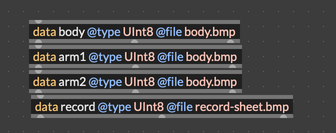
The .bmp files need to be in Max's search path. When you export to the Move, they'll be included in the export automatically.
Drawing with a Spritesheet
With the data loaded, we can use spritesheet objects in a codebox to draw images onto a display. The basic workflow is:
- Create a
displayobject for the Move's screen - Create a
spritesheetfor each image, specifying its dimensions in pixels - Each frame, bind each spritesheet to the display and call
draw()
Here's the full drawing codebox:
const body_width = 64;
const body_height = 56;
const record_diameter = 46;
const arm1_width = 4;
const arm1_height = 32;
const arm2_width = 13;
const arm2_height = 4;

@state draw = new display("display", 128, 64);
@state body = new spritesheet("body", 64, 56);
@state record = new spritesheet("record", record_diameter, record_diameter);
@state arm1 = new spritesheet("arm1", arm1_width, arm1_height);
@state arm2 = new spritesheet("arm2", arm2_width, arm2_height);

@state last_index = -1;

let next_index = floor(in1);

if (
  draw.ready() &&
  body.valid() &&
  record.valid() &&
  arm1.valid() &&
  arm2.valid() &&
  last_index != next_index
) {
  draw.clear();

  // Draw the record player body, centered
  let body_x = floor((128 - body_width) / 2);
  let body_y = floor((64 - body_height) / 2);
  body.bind(draw.bufferref(), draw.spritedata());
  body.draw(0, body_x, body_y);

  // Draw the current frame of the spinning record
  record.bind(draw.bufferref(), draw.spritedata());
  record.draw(next_index, body_x + 5, body_y + 5);

  // Draw the two parts of the tone arm
  arm1.bind(draw.bufferref(), draw.spritedata());
  arm1.draw(0, body_x + 53, body_y + 6);

  arm2.bind(draw.bufferref(), draw.spritedata());
  arm2.draw(0, body_x + 44, body_y + 34);

  last_index = next_index;
  draw.markdirty();
}
A few things to notice:
Creating a spritesheet — new spritesheet("name", width, height) creates a spritesheet linked to the data buffer with the given name. The width and height should match the dimensions of one frame in the bitmap. If the spritesheet has multiple frames (like the spinning record), then the width and height here should be the dimensions of a single frame. It doesn't matter if the frames are stacked vertically, horizontally, or tiled. The dimensions can also be less than the actual dimensions of the image, if you only want to use part of the image.
Checking validity — It's important to call valid() on any spritesheets before drawing.
Binding before drawing — Before calling draw(), you must call bind() to associate the spritesheet with the display buffer. The arguments are draw.bufferref() (a reference to the display's pixel buffer) and draw.spritedata().
Selecting a frame — When calling the draw() method on a spritesheet, the first argument is the frame index. For single-frame images like the body, this is always 0. For the record, we pass next_index to select which rotation frame to show. The second and third arguments are the x and y position on the display.
Layering — We draw the body first, then the record on top of it, then the tone arm. Each draw() call composites the sprite over whatever's already on the display. The order matters—if we drew the body of the record player first, we wouldn't see anything else.
Only redraw on change — We track last_index so that we only redraw when the frame index actually changes. This is similar to using the dirty variable in the previous tutorial.
Driving the Animation with Audio
Now that we've got code to draw the sprites, we need to calculate the index to use for the rotation. To do this, we're using the accumulator object +=~, which will increase steadily so long as the speed of playback is greater than zero.
This patch cannot play backwards, but it would be a nice exercise to try to modify the patch so it could.
The audio chain works like this:
- The playback speed gets smoothed out and divided down to a small number.
- The result goes into a
+=~ @max 36accumulator — this adds up the values sample by sample, wrapping at 36, or one full rotation of the record sprite. snapshot~ 16samples the audio value, and this goes into the codebox as the frame index.
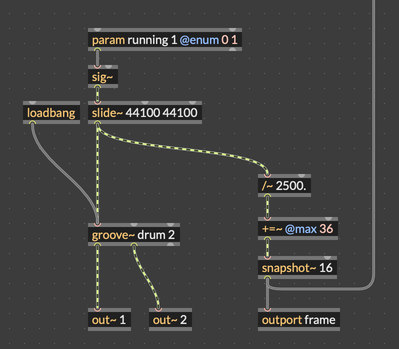
The /~ 2500. divisor controls the overall rotation speed. A larger number slows the animation down; a smaller number speeds it up. You can change this if you want the record animation to play at a different overall speed.
Putting It Together
Here's the complete patch:
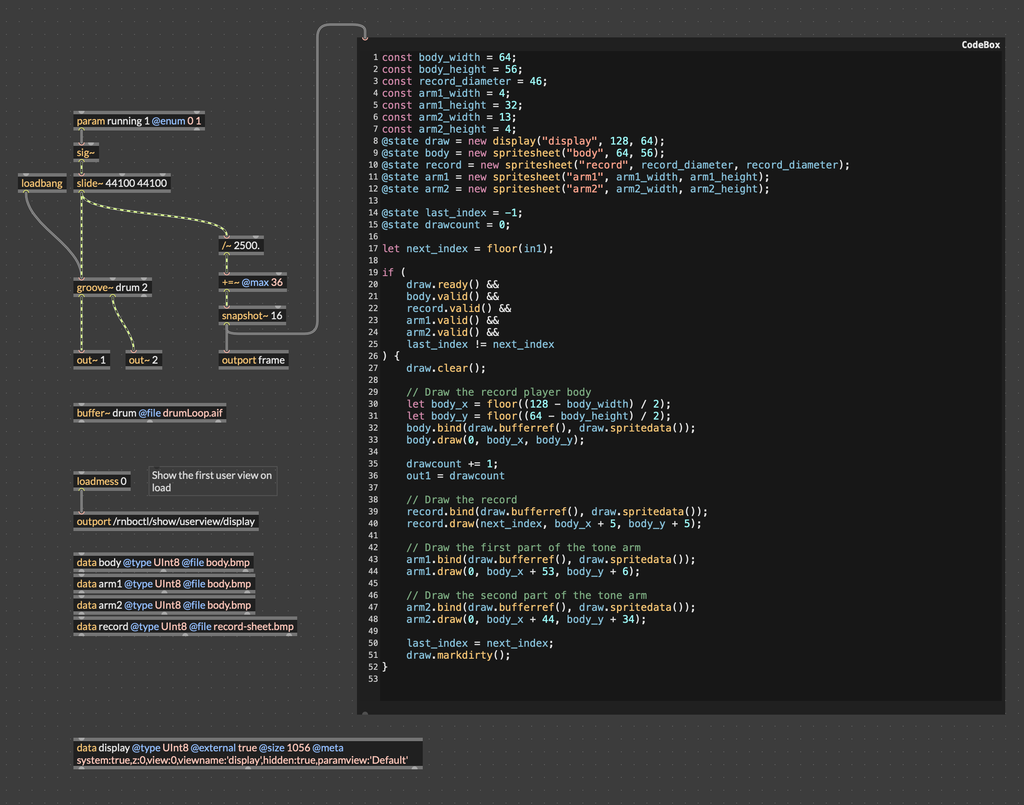
Export this to the Move and add the node to the graph. You shouldn't need to connect any MIDI input or output, but you'll need to connect RNBO's audio to the Move audio output if you want to hear anything. When you start playback by setting the play speed parameter, you should see the record spin.
What We Learned
- You can load
.bmpfiles intodatabuffers using@type UInt8 @file filename.bmp spritesheetobjects reference named data buffers and know how to decode and draw BMP pixel data- Call
bind()before eachdraw()to associate the spritesheet with the current display - The first argument to
draw()selects the animation frame, enabling flipbook-style animation - Multiple spritesheets can be layered on a single display by drawing them in order
The combination of pre-drawn bitmap artwork and procedural control gives you the best of both worlds: polished visuals that would be tedious to draw with code, animated in real time by whatever is happening in your patch.