Custom Drawing on the Move with User Views
User Views are a way for you to draw to the Move display from your patcher exports. You can define multiple views in a graph, layer views and selectively hide and reveal layers. You're able to draw not only static images, but also animations.

In this guide, we'll build a RNBO patch with two custom users views, one simple and one slightly more complex. Both display the state of an LFO. In the end, we'll end up with something that looks like this:
A Simple Patch
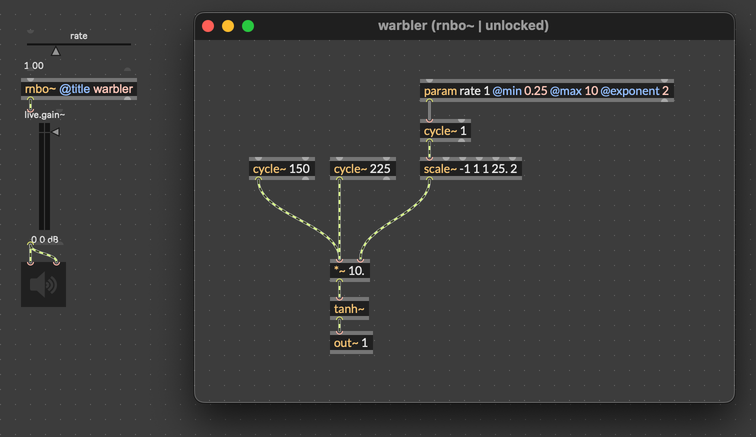
Let's start with an extremely simple RNBO patch. This patch makes a warm, warbly drone by overdriving a pair of oscillators.
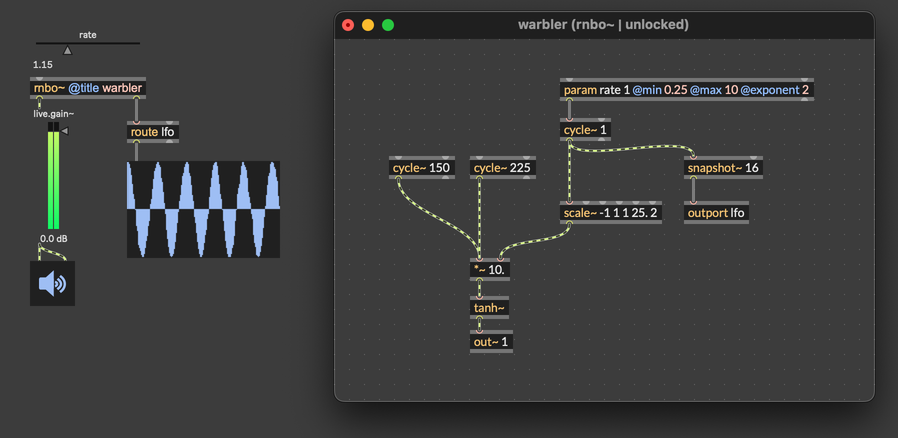
If we want to visualize the LFO in Max, we can add an outport to grab the state of the LFO. Then we can show the LFO changing over time with a multislider.
Simple Drawing: Intro to the "display" Operator
Let's make a visualization for this LFO. Simply, let's draw a solid rectangular block of white pixels. When the LFO is at its smallest, the block will be at its shortest. When the LFO is largest, the block will fill the screen.
To do custom drawing, we first create a data object in RNBO. This object will hold the actual pixels that Move will draw to the screen. Next, we create a display operator in codebox to manage this data object. Through the display operator, we can check if the screen is ready to draw, clear the data, write individual pixels, and tell Move that we're ready to draw.
- Create a data object to hold your drawing.
- Make a display operator to use the data as a drawing surface.
- Call
ready()to see if the surface is ready for drawing. - Call
setpixel(),ormask(), orandmask()to draw pixels. - Call
markdirty()to hand the display to Move to be written to the screen.
Creating a data Object
In your RNBO patcher, create a data object. This object will hold the data that Move will draw to the screen when you call markdirty().
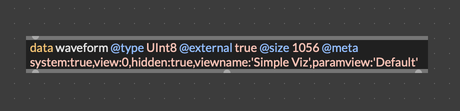
For a full breakdown of what each of these values mean, check the full documentation for User Views. Some important values:
- waveform: The name "waveform" can be whatever you want. Your codebox code will use this to refer to the data object that you will draw to.
- @size: The Move display is 128 by 64 pixels, for a total of 8192 pixels. Since each pixel is a single bit (on or off), one byte can represent 8 pixels. So, to fill the Move screen, we need 1024 bytes. Finally, 32 bytes more must be reserved for the header, for a total of 1056 bytes.
We define some important key-value pairs in the @meta section as well. It's useful to note that these meta values can actually be changed in the graph editor after export. This can be very useful if you want to have multiple instances of a node, each of which supports a User View. You can modify the meta values to give each User View a distinct name.
- view: This must be set to define the view. It gives the view an index, defining the order in which User Views will appear on the Move. It also lets you select a User View programmatically using the
/rnboctl/userview/displayOSC message. - viewname: 'Simple Viz': This gives the User View a name, defining how it will appear in the list of User Views.
- paramview: 'Default': When selected, a User View will map a set of parameters (a Parameter View) to the Move encoders, as determined by the
paramviewmeta key. The special value'Default'uses the default order of parameters, rather than a named Parameter View.
Creating a display Operator
Now that we have some space to store our custom drawing, we can create a display operator to manage that drawing. In a codebox object, create a @state variable holding a new display operator.
@state draw = new display("waveform", 128, 64);
This creates a display operator named "draw", bound to the data object named "waveform". It also gives the display a default width of 128 and height of 64, the same as the display on the Move. This will of course cover the whole display. You can use a smaller display, for example if you want to layer multiple display objects.
Call ready() to see if the surface is ready
The drawing buffer is shared memory. RNBO can write to the buffer, but only if it's not in use by another process. You can call ready() to check if the buffer is free and available for your RNBO code to write to it.
@state draw = new display("waveform", 128, 64);
@state level = 0;

function paint() {
  // Drawing code goes here
}

level = in1;
if (draw.ready()) {
  paint();
}
Call clear() to clear and setpixel() to draw
Once we know the data buffer is ready, we can call drawing functions that alter the contents of the buffer. The clear() function sets all the data in the buffer to zero. To set pixels, we can call setpixel(), which updates the state of a single pixel. In our case, we're just trying to fill the display with a rectangle that's as tall as the LFO level. After updating the data contents, we call markdirty() to pass the buffer back to the Move to draw to the display. That code could look like this:
@state draw = new display("waveform", 128, 64);
@state level = 0;

function paint() {
  draw.clear();
  for (let row = 0; row < 64; row++) {
    let nheight = scale(row, 0, 63, 1, -1); // row 0 is the top
    if (nheight < level) {
      for (let col = 0; col < 128; col++) {
        draw.setpixel(row, col, 1);
      }
    }
  }

  draw.markdirty();
}

level = in1;
if (draw.ready()) {
  paint();
}
Update the patch
After creating the data object and adding this code to a codebox object, we just need to connect the output of snapshot~ to codebox to trigger a redraw.
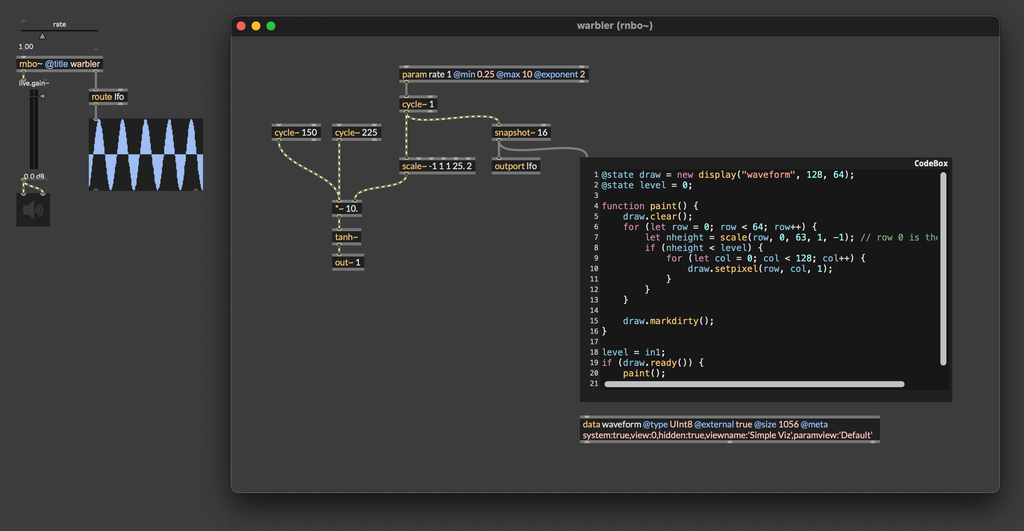
Export and connect
Now that we've got our drawing code in place, let's export to the Move. Make sure your Move is in RNBO Move Takeover mode, then export the patch to the Move from Max. In the graph editor (http://move.local:3000/), you should connect the node to audio output if you want to hear the patch. Because we're not changing the state of any LEDs using MIDI output, there's no need to connect MIDI to "Move Out MIDI". You don't need to do anything special to see the User View either.
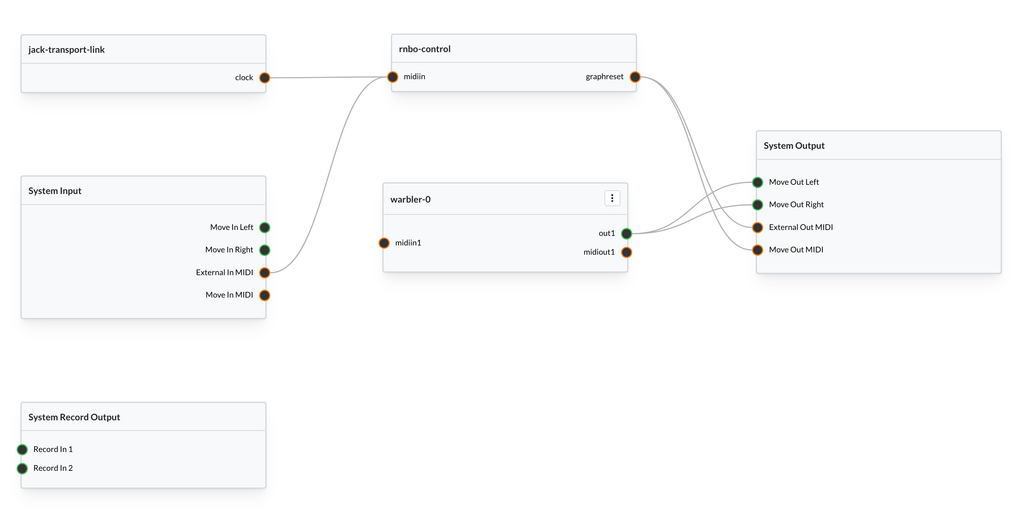


On the Move, press the the Back button to return to the menu if it's not already visible. Scroll to find User Views and select it. Because we've only got one User View, you should see the view load right away, and you should see something like this:
Optimization
If we wanted to, we could be slightly more optimal about this drawing code. Each pixel of the Move display is represented by a single bit, since that pixel can only be on or off. However, we can update 8 bits of the display at a time using the ormask() and andmask() functions. These functions take a byte of data, and perform a logical "or" or "and" operation with the byte of data at a particular location in the data buffer.
One important thing to remebmer when working with ormask() and andmask(): the eight pixels that are represented by the eight bytes in each bit are reversed. That means that in a row of pixels represented by a single byte, the leftmost bit represents the rightmost pixel.
Here's a slightly more optimized version of the same LFO visualization code, written to work with ormask().
@state draw = new display("waveform", 128, 64);
@state level = 0;

const solidMask = 255; // 0xFF, all 8 pixels active

function paint() {
  draw.clear();
  for (let row = 0; row < 64; row++) {
    let nheight = scale(row, 0, 63, 1, -1); // row 0 is the top
    if (nheight < level) {
      let address = row * draw.rowbytes();
      for (let col = 0; col < 128; col+=8) {
        draw.ormask(address, solidMask);
        address++;
      }
    }
  }

  draw.markdirty();
}

level = in1;
if (draw.ready()) {
  paint();
}
The particular value of solidMask is 255, which would be written as 11111111 in binary notation. It's the largest value that an 8-bit unsigned integer can have, and setting a given byte of the display to 255 will turn on a row of eight pixels. This kind of optimization isn't always necessary, but it's useful to know that you can use ormask() and andmask() to update up to eight pixels at once, while setpixel() can only update one.
Curve Drawing
Let's do a better drawing of the LFO, one that looks more like the multislider display. The strategy here is pretty simple:
- Take LFO values from snapshot~ and store them in a buffer.
- When it's time to paint, walk through the values in that buffer.
- For each value, draw a line from the middle of the display towards the top for positive value, and from the middle towards the bottom for negative values.
We can make a data object to hold values coming from snapshot. This is a data object being used in the ordinary, audio sense.
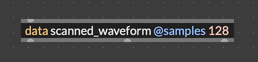
In a new codebox object, we can use the poke() operator to write values into this data buffer.
@state scan = new buffer("scanned_waveform");
@state index = 0;

// Put the value into the data buffer and move to the next index
function push_value(v) {
  poke(scan, v, index);
  index = (index + 1) % 128;
}

push_value(in1);
If we put this in a codebox and connect it to our snapshot~, now we can write some values into our buffer.
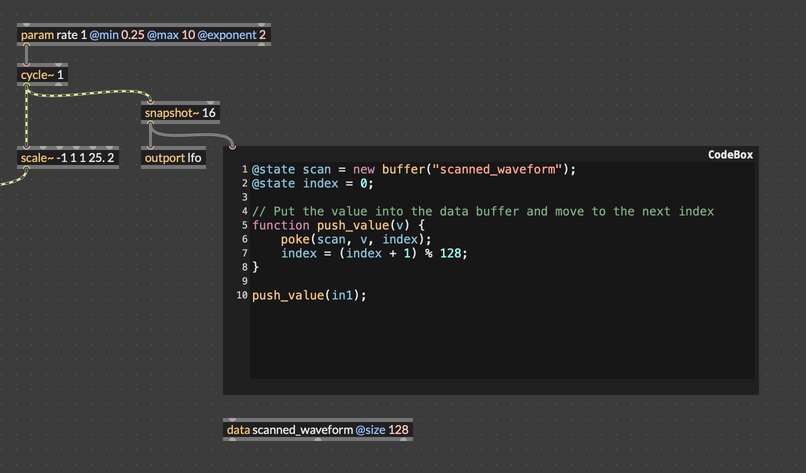
Now we're ready to write the paint() function, but first we need to make a data object to store our custom drawing.

Notice that we set the metadata value view to 1. This means that in the User View list, this "Fancy Viz" view will show up at index 1, or the second position in the list. Again, you can change this in the Graph Editor, if you want to rename your user views or change their order.
Now we're ready to write our paint() function. First, it will be very helpful to have a function drawVerticalLine(), which will handle the process of drawing each part of the waveform, from the x-axis up to the sample position itself.
// Draw a vertical line at x from y0 to y1
function drawVerticalLine(x, y0, y1) {
  for (let i = min(y0, y1); i <= max(y0, y1); i++) {
    draw.setpixel(i, x, 1); // careful to use row-column order
  }
}
Using this function, it's easy to write our paint() function.
function paint() {
  draw.clear();

  // for each column
  for (let i = 0; i < 128; i++) {
    let samp = peek(scan, i)[0]; // first channel of scan at index i
    let y1 = clamp(scale(samp, -1, 1, 63, 0, 1), 0, 63); // scale to 63-0 range
    drawVerticalLine(i, 31, y1);
  }
  draw.markdirty();
}
And we can put it all together to get our drawing code.
@state draw = new display("fancy_waveform", 128, 64);
@state scan = new buffer("scanned_waveform");
@state index = 0;

// Put the value into the data buffer and move to the next index
function push_value(v) {
  poke(scan, v, index);
  index = (index + 1) % 128;
}

function drawVerticalLine(x, y0, y1) {
  for (let j = min(y0, y1); j <= max(y0, y1); j++) {
    draw.setpixel(j, x, 1); // careful to use row-column order
  }
}

function paint() {
  draw.clear();

  // for each column
  for (let i = 0; i < 128; i++) {
    let samp = peek(scan, i)[0]; // first channel of scan at index i
    let y1 = scale(samp, -1, 1, 63, 0, 1); // scale to 63-0 range
    y1 = round(y1);
    y1 = clamp(y1, 0, 63);
    drawVerticalLine(i, 31, y1);
  }
  draw.markdirty();
}

push_value(in1);
if (draw.ready()) {
  paint();
}
Here's the full code in context, with the patch.
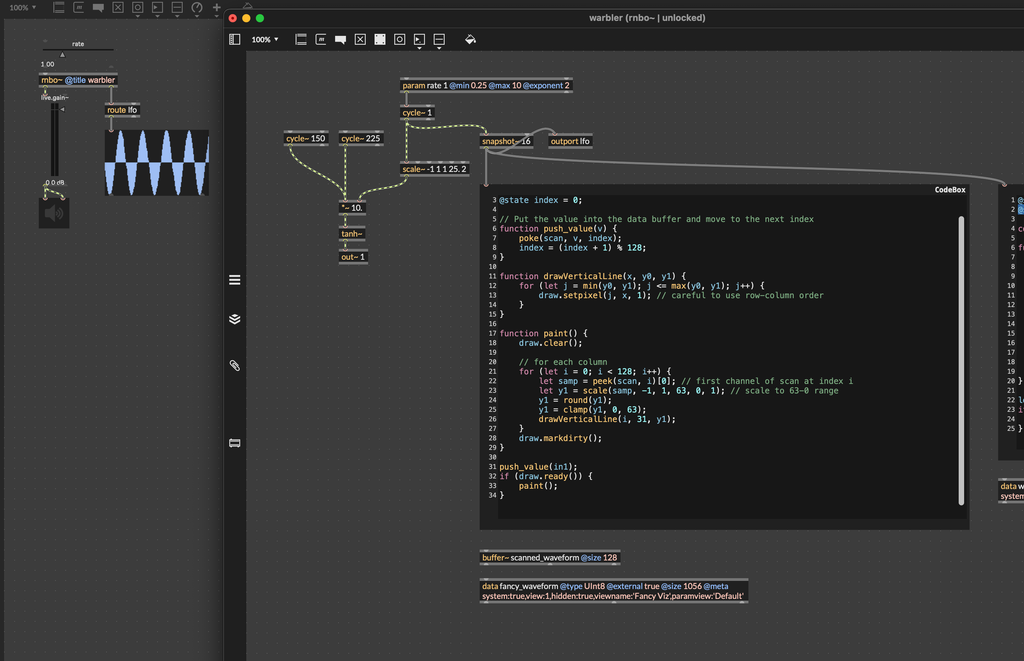
When you're ready, push this code to the Move.
When you push a patch to the Move, it won't update the current Graph until you select Reload Graph from the Graph Editor menu. If you don't see your drawing update, be sure to check that you've reloaded your graph.
With the new fancy visualizer code uploaded, you should see a new User View called "Fancy Viz" appear in the user view menu. Select this view, and you should see something like this:

When you look at this, you might feel a little disappointed that it doesn't have the smooth, sliding style of the "line scroll" mode in the native multislider object. It's a useful exercise to try to work out how to make this change, but read on if you want to see one easy way to do it.
Currently, we always draw the waveform from position 0 until the end of the buffer. Because of this, the "write head" keeps moving through the buffer, and we see the sharp cut in the waveform where we're overwriting old data. If we want to change that, the solution is easy enough: start drawing from a different position. Specifically, start drawing from the same position as we're currently writing.
Here's how we can modify our drawing code:
function paint() {
  draw.clear();

  for (let i = 0; i < 128; i++) {
    let read_position = (i + index) % 128;
    let samp = peek(scan, read_position)[0]; // first channel of scan
    let y1 = scale(samp, -1, 1, 63, 0, 1); // scale to 63-0 range
    y1 = round(y1);
    y1 = clamp(y1, 0, 63);
    drawVerticalLine(i, 31, y1);
  }
  draw.markdirty();
}
And that's actually all we have to do.