Complex Interactions with User Views
In the previous tutorial, we built a simple RNBO patch with a custom User View. Now let's look at a more complex, real-world example: a polyphonic FM synthesizer with two animated User Views, a customizable pad layout, and track buttons that let the performer switch between User Views and Parameter Views while playing.

Here's what the finished patch looks like on the Move:
Dividing Responsibility
This patch is built from three RNBO nodes, each with a its own job:
- fm-synth — the polyphonic FM synthesizer engine, including the User Views
- move-keys — styles the pads for different layouts
- track-controller — manages the track buttons and drives view switching
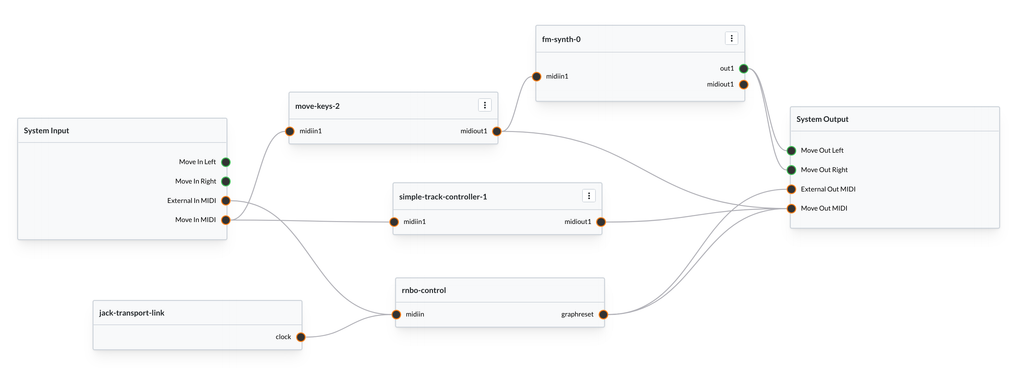
Splitting functionality like this should make it easier to test and debug each one. Keeping things modular also means that we can reuse these pieces outside of Move. The FM Synth node has custom user views, but you could use it in a VST or another RNBO target without issue.
We'll see how these nodes use both MIDI and OSC to communicate. Let's start with the FM synthesizer.
Building an ADSR User View
Let's start with a simple polyphonic FM synthesizer, and build on there. Here's a standard, no-frills FM synth, based on the builtin simpleFM~ patcher.
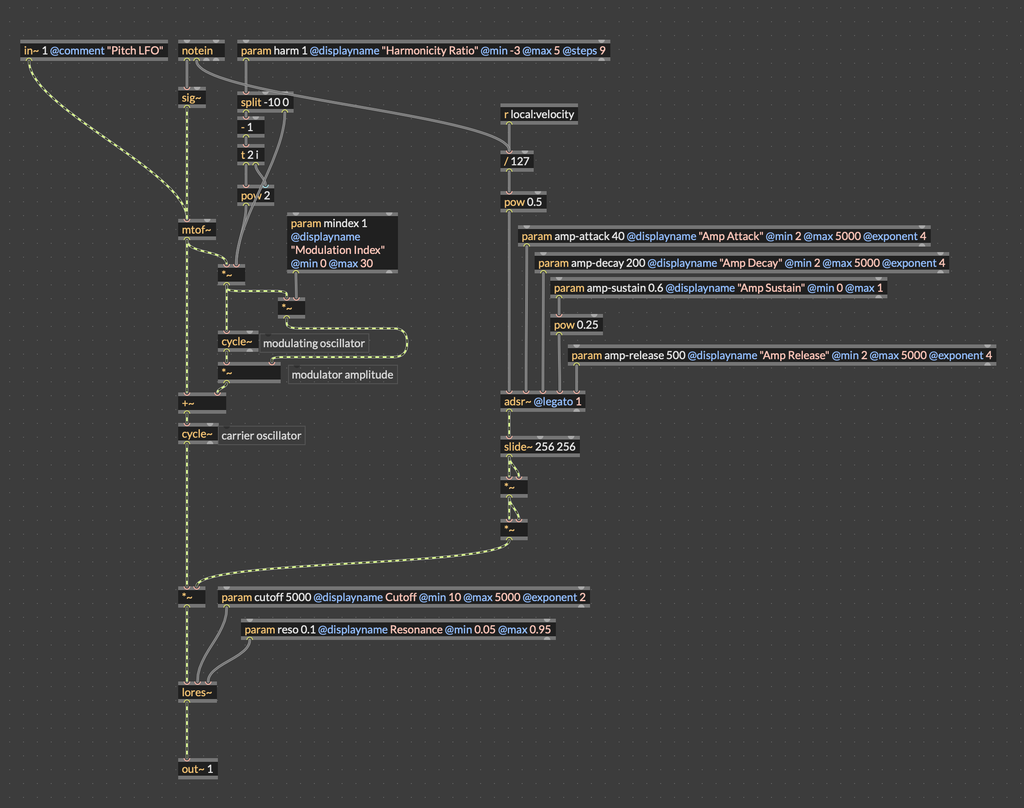
You can open this starting point here.
This polyphonic FM synth has the standard FM parameters for harmonicity ratio and modulation index. It also has params for an ADSR envelope, a lowpass resonant filter, and an LFO that can apply vibrato. To start, let's add a user view to visualize the ADSR envelope.
In order to draw an ADSR envelope, we need to draw four lines. First, we draw a line from zero to the top of the display, with a more gentle slope for a longer attack, and a straight line for a fast attack. We then draw another line for the decay, from the top of the display down to the sustain. We draw a straight line across the display for the sustain, and finally one more line for the release, from the end of the sustain line to the bottom-right of the display.
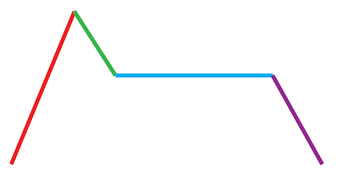
Our process for drawing the ADSR envelope will look something like this:
- Collect the parameters into a list
- Send that list to a codebox to manage redrawing
- Build a list of endpoints for each line segment in the ADSR envelope
- Draw each line segment
Bringing subpatcher parameters to the top level
In the FM synth that we're working with, each polyphonic voice has its own envelope, and its own envelope parameters. By default, RNBO doesn't expose individual parameters for each polyphonic voice, instead letting us manage them all at once. So, we don't need a user view for each voice, and we could just draw the ADSR envelope for the first voice.
We have some options as to how we can handle this. It's actually totally fine to define our user view in the polyphonic voice itself, along with the code to draw to the display. However, the approach we're going to take here is to use an outport to send the envelope parameters to the main RNBO patch, and to do our envelope drawing there.
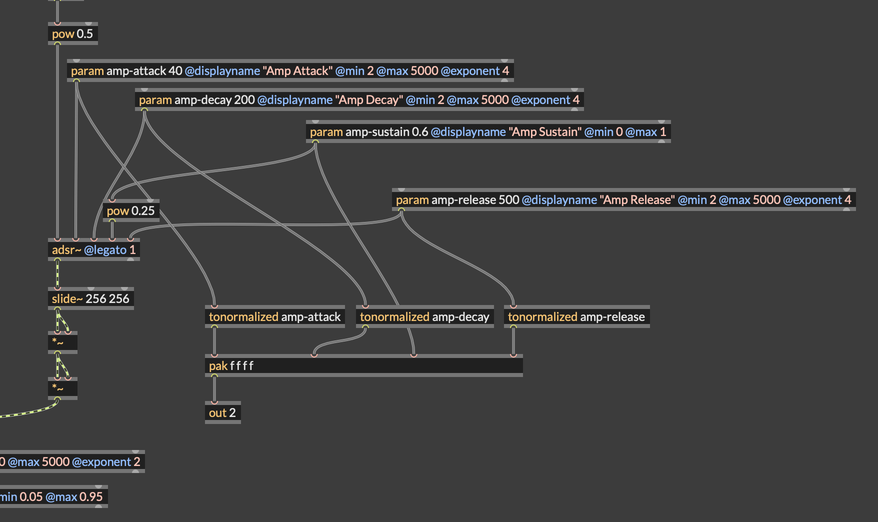
Once back out in the main patcher, we can connect this list to our drawing code.
Placing the ADSR drawing code
Of course the first thing we need is a data object to hold the drawing surface. This should be placed back out in the main RNBO patcher.
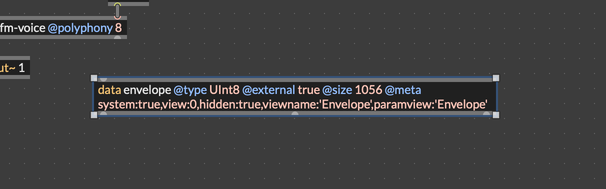
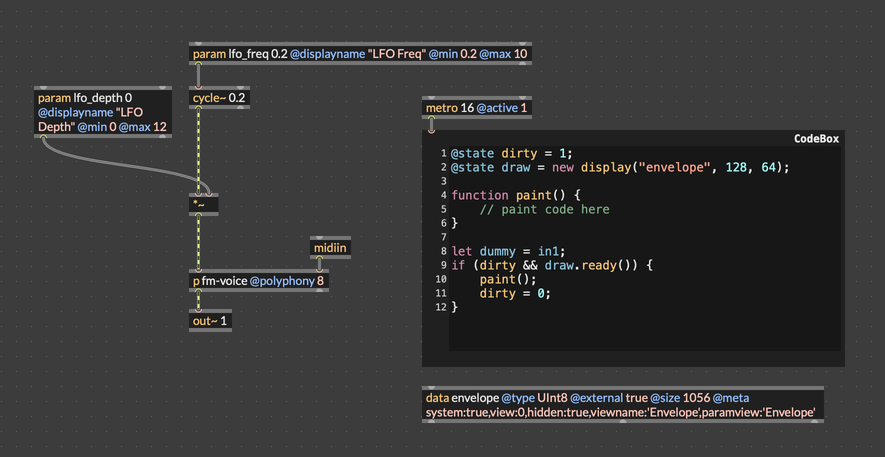
For this drawing code, we're going to use a "polling" pattern, where we're regularly trying to draw to the display, but we only actually redraw the display if something has changed. In the previous example, we were drawing a waveform that was constantly changing. However, we're now drawing an envelope that might not change between frames. So, we use a @state variable called dirty to only run our drawing code when we need to.
@state dirty = 1;
@state draw = new display("envelope", 128, 64);

function paint() {
  // paint code here
}

let dummy = in1;
if (dirty && draw.ready()) {
  paint();
  dirty = 0;
}
Also note the assignment of in1 to an unused variable called dummy. This technique forces the codebox object to create an inlet, which we can send a bang to trigger drawing. We can add a metro object to poll our drawing code for redrawing at some steady interval. Here's the starting point for the drawing code in the patch:
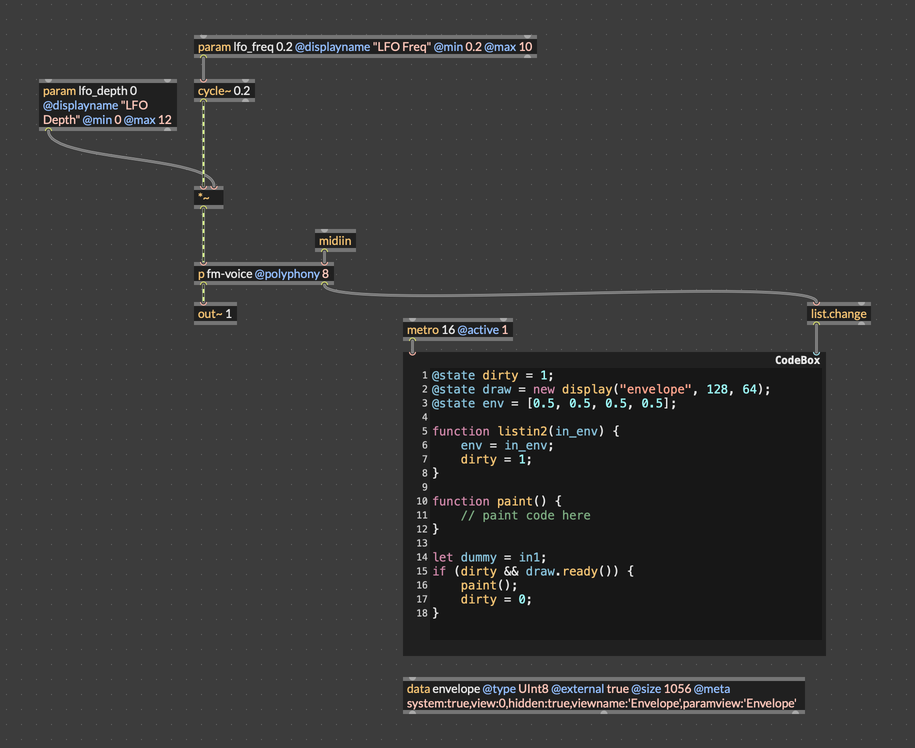
Now the last thing to do to get ready to write our drawing code is to attach the list output of the fm-voice itself to the codebox. We'll pass this through a list.change object so that we only redraw when the envelope state changes. Finally, we'll add a listin2 function that will trigger drawing when the envelope is updated.
@state dirty = 1;
@state draw = new display("envelope", 128, 64);
@state env = [0.5, 0.5, 0.5, 0.5];

function listin2(in_env) {
  env = in_env;
  dirty = 1;
}

function paint() {
  // paint code here
}

let dummy = in1;
if (dirty && draw.ready()) {
  paint();
  dirty = 0;
}
Here's the patcher after making these changes.
The ADSR drawing code
Here's the code to draw the ADSR. This makes use of a function drawLine(), which is a modified form of Bresenham's Algorithm for drawing a rasterized line to a display with integer coordinates.
@state dirty = 1;
@state env = [0.5, 0.5, 0.5, 0.5];
@state draw = new display("envelope", 128, 64);

function listin2(l) {
  env = l.slice();
  dirty = 1;
}

function drawLine(x0, y0, x1, y1) {
  let dx = abs(x1 - x0);
  let dy = abs(y1 - y0);
  let sx = x0 < x1 ? 1 : -1;
  let sy = y0 < y1 ? 1 : -1;

  let err = dx - dy;

  for (let i = 0; i < 150; i++) {
    draw.setpixel(y0, x0, 1);

    if (x0 == x1 && y0 == y1) break;

    let e2 = 2 * err;
    if (e2 > -dy) { err -= dy; x0 += sx; }
    if (e2 <  dx) { err += dx; y0 += sy; }
  }
}

function drawLineSegmentList(drawpoints: list) {
  let y0 = 0;
  let x0 = 0;
  for (let i = 0; i < drawpoints.length; i += 2) {
    let x1 = drawpoints[i];
    let y1 = drawpoints[i + 1];

    if (i != 0) {
      let q0 = round(clamp(scale(x0, 0, 1, 0, 127, 1), 0, 127));
      let q1 = round(clamp(scale(x1, 0, 1, 0, 127, 1), 0, 127));
      let r0 = round(clamp(scale(y0, 0, 1, 63, 0, 1), 0, 63));
      let r1 = round(clamp(scale(y1, 0, 1, 63, 0, 1), 0, 63));
      drawLine(q0, r0, q1, r1);
    }
    x0 = x1;
    y0 = y1;
  }
}

function paint() {
  draw.clear();
  let drawpoints = [];
  let progress = 0;
  drawpoints = drawpoints.concat([0, 0]); // start
  progress = 0.25 * env[0]; // attack
  drawpoints = drawpoints.concat([progress, 1]);
  progress += 0.25 * env[1];
  drawpoints = drawpoints.concat([progress, env[2]]); // decay
  progress = (1.0 - 0.25 * env[3]);
  drawpoints = drawpoints.concat([progress, env[2]]);
  drawpoints = drawpoints.concat([1.0, 0.0]);
  drawLineSegmentList(drawpoints);
  draw.markdirty();
}

let dummy = in1;
if (dirty && draw.ready()) {
  paint();
  dirty = 0;
}
Here's the patch with the updated drawing code. You may notice a list.reg and a loadbang in this patch. This simply forces a redraw after a short delay. I was experiencing a graphical glitch right when the patch first loaded. By the time you're reading this, the issue will probably have been fixed, so those objects shouldn't be necessary.
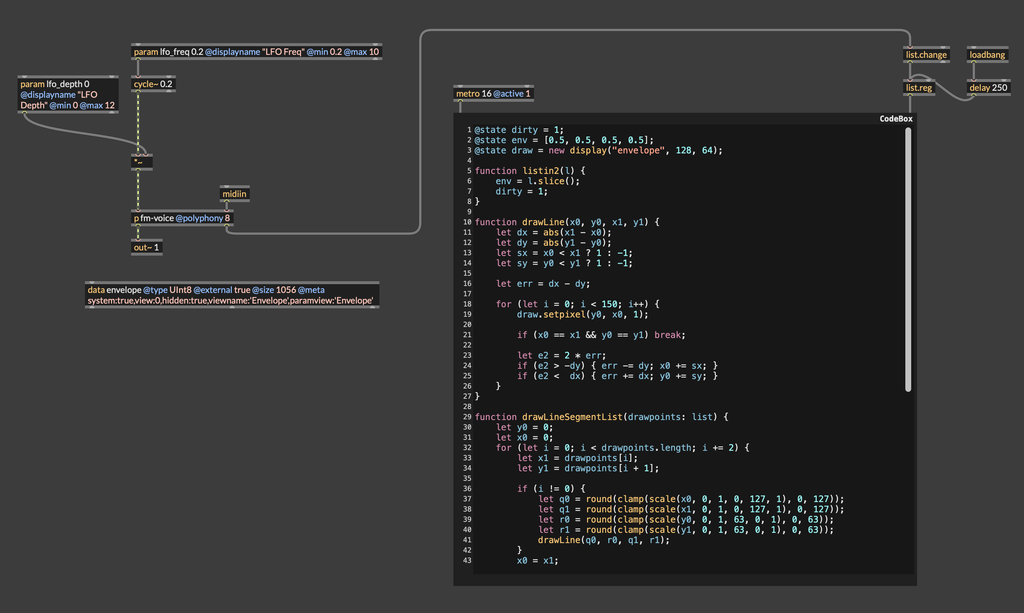
Exporting and creating a Param View
Export this patch to the Move and drop it into a graph. When you open User Views, you should see the ADSR display. If you look at the metadata for the data object, you'll see an entry "paramview": "Envelope".
You can check and update metadata for a buffer object from the Graph Editor. Click thes Devices icon in the left navbar, then on the Buffers tab, and then use the three-dot menu next to the buffer whose metadata you want to edit.
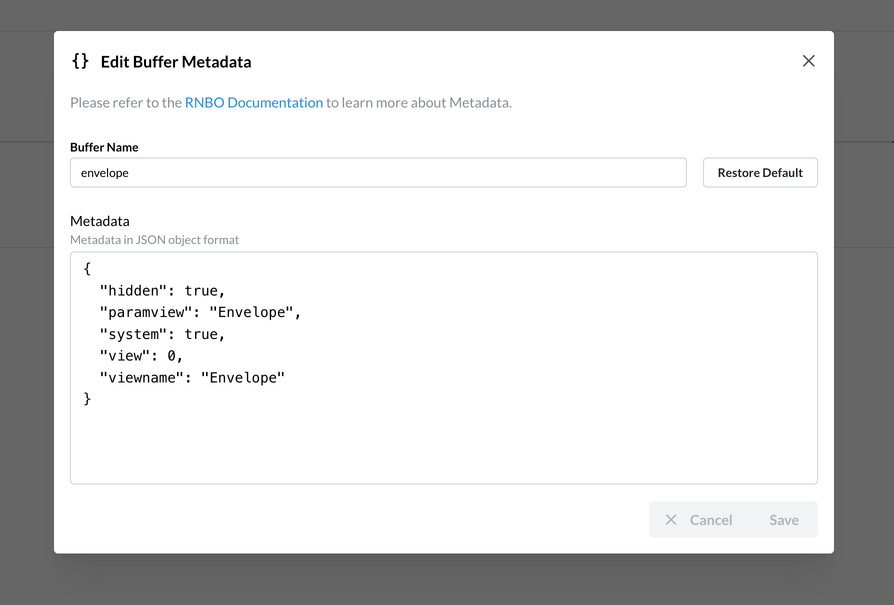
This means that when this User View is displayed, the encoders will be mapped to the parameters in the param view named "Envelope". Try making a parameter view named Envelope, and give it the parameters for the envelope attack, decay, sustain, and release. You can read more about creating parameters views in the documentation.
Building an LFO User View
If you want to get the work we've done so far, you can open this patch.
Now, we want to add a second User View, drawing an oscilliscope-style picture of the LFO. Each paint() call reads through the 128-sample buffer scanned_waveform and draws a point for at a height corresponding to the value of the LFO. We looked at this in the previous tutorial, so we're basically just going to copy that work here.
- Create a data object to hold the display
- Write samples from the LFO into a buffer
- Scan that buffer to update the display
We'll make two small changes. The first is totally cosmetic: I kind of think the LFO display looks a bit better if we just draw the curve itself, rather than filling it in. Second, we'll use different metadata in our display data buffer. Most importantly, we'll set the "view" index to 1, so that the LFO display will come second in the list of user views.
@state draw = new display("lfo", 128, 64);
@state index = 0;
@state scan = new buffer("scanned_waveform");

function push_value(v) {
  poke(scan, v, index);
  index = (index + 1) % 128;
}

function paint() {
  draw.clear();
  let x = index;
  for (let i = 0; i < 128; i++) {
    let y1 = peek(scan, x)[0];

    let r1 = clamp(scale(y1, -1, 1, 63, 0, 1), 0, 63);
    draw.setpixel(r1, i, 1);
    x = (x + 1) % 128;
  }
  draw.markdirty();
}

push_value(in1);
if (draw.ready()) {
  paint();
}
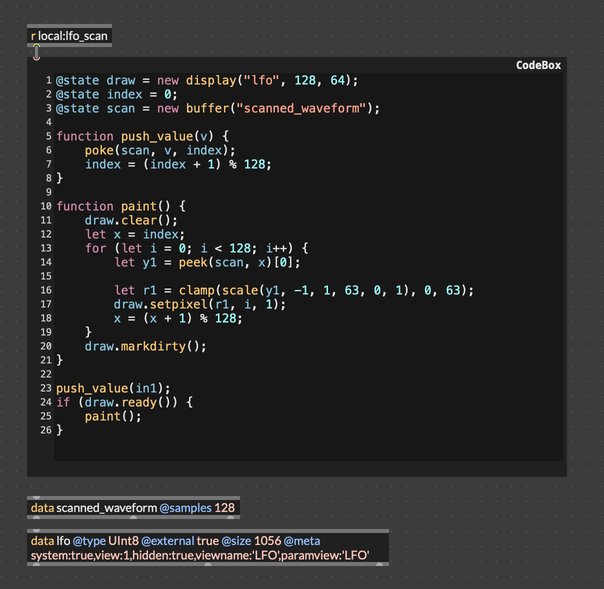
Lastly, don't forget to add a snapshot~ to the patcher, to push the LFO values into our buffer to be drawn.
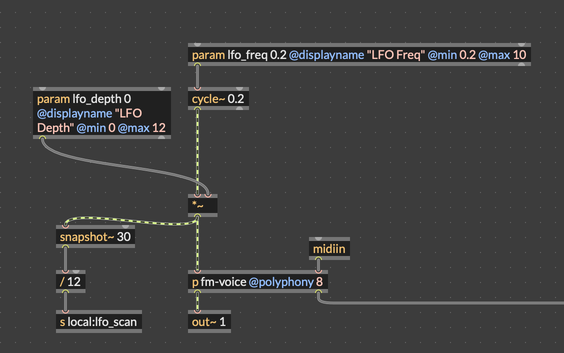
Now, try exporting this patcher to the Move again. When export finishes, add the fm-synth node to a Graph View. When you check User Views, you should now see two views listed, one called Envelope and one called LFO. If you select LFO, you'll see an oscilloscope-style visualization of the LFO (which will look like a flat line if the LFO is not active). Similar to the Envelope user view, the LFO user view declares a param view, this one called LFO. There are two parameters that are relevant to the LFO: LFO Depth and LFO Freq. Try creating a param view with these two parameters. Now when you select the LFO user view, the Move's encoders should be mapped to these parameters, and you should be able te control the LFO directly.
Custom Pad Controls
We've got the ADSR and the LFO display, but we haven't actually connected the pads to the synthesizer yet. On the default Move hardware, the pads can be configured with one of several layouts. Each row can correspond to a single, in-key octave, or the pads can be chromatic, or each row can be one fourth higher than the previous. We won't go into to detail about how to build that functionality here, but you can use the patch move-keys.maxpat to color and interpret the pads this way.
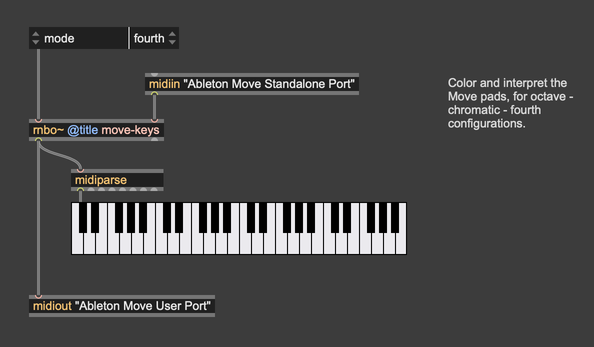
Export this patch to the Graph Editor, and then add a move-keys node to your patcher. Remember that this patch has three jobs:
- Interpret pad inputs
- Style and color the pads
- Send MIDI note on/off to downstream patches
So, there should be a connection from Move In MIDI, a connection to Move Out MIDI, and a connection to the synthesizer. With these two nodes in your graph, you should set up your graph like this:
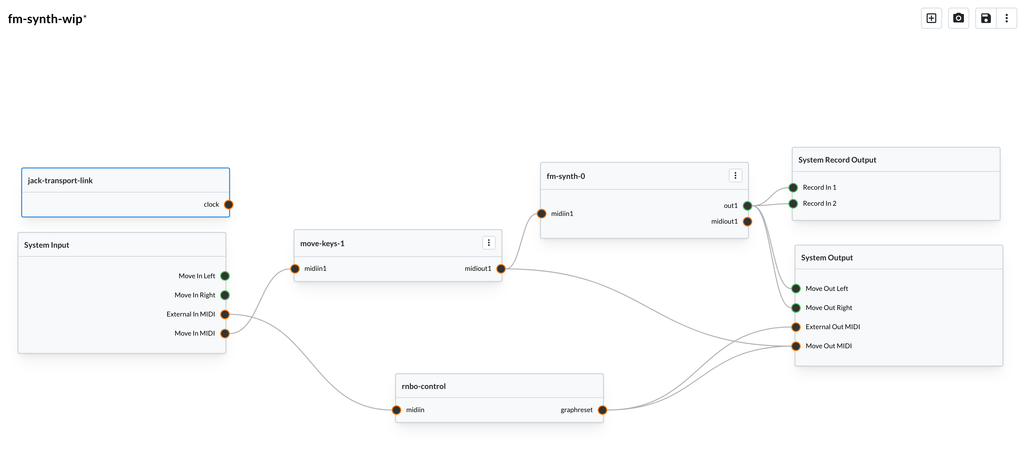
Processing the Track Buttons
In the move-keys patch from the previous section, we monitor the pad inputs and send a MIDI note whenever one is pressed. Using a similar technique, we can watch the track buttons and use them to switch between different views.
The track-controller patch is very simple. On load, we send a message to each of the four track buttons, changing its color. We also use input-driver to respond when the track buttons are pressed, changing the color of the pressed button to white until it is released.
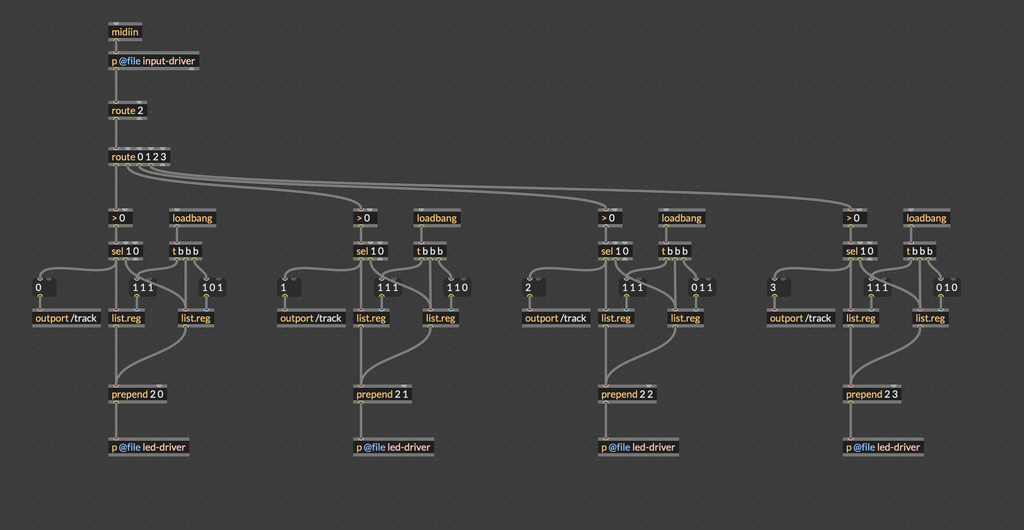
However, the really important piece is subtle: the outport object. If you take a close look, each button input is also connected to an outport object with the tag /track. The leading slash "/" is very important. In the context of RNBO Move, this means that messages sent to this outport will be sent over OSC to the address /track. Other patches with the inport /track can receive these messages, even if there is not connection between these patches in the graph editor.
Go ahead and export this patch. After you add the track-controller node to the graph, connect it to Move In MIDI and to Move Out MIDI. Save and reload the graph, and you should see the track buttons light up, each with a different color.
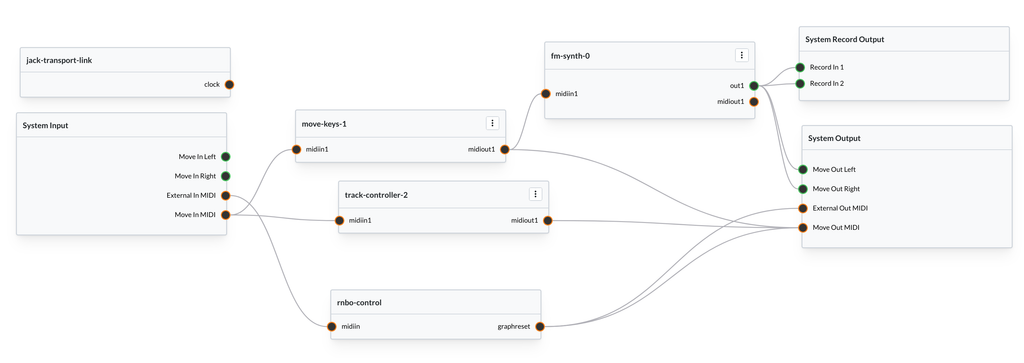
Now we're ready for the last piece: using these track buttons to load bifferent views.
Switching Between Views with Track Buttons
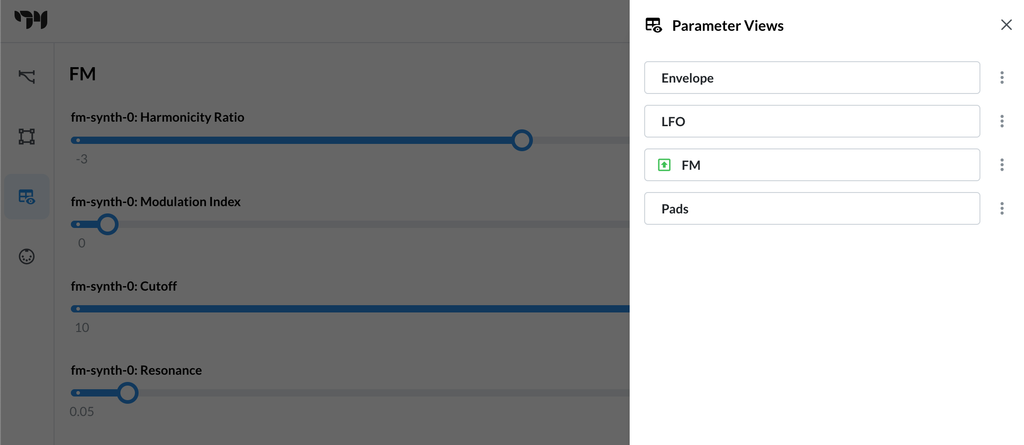
We've created two User Views so far, one for the ADSR envelope and one for the LFO. Let's go ahead and create two Parameter Views as well. These can be anything you want. I made one called FM that collects the parameters Harmonicity Ratio, Modulation Index, Cutoff, and Resonance, and another one called Pads that uses the Mode and Root parameters from the move-keys node. In totaly now you should have four parameter views: Envelope, LFO, FM, and Pads.
In order to show a Parameter View or a User View programmatically, we can use special OSC addresses that RNBO Move establishes for us. You can check the OSC Documentation, which shows two addresses that are particularly interesting;
| Address | Function |
|---|---|
/rnboctl/show/userview/display | Show a User View at the given index |
/rnboctl/show/paramview/display | Show a Parameter View at the given index |
Since outport will automatically send messages over OSC if the tag argument starts with a leading slash, the patch to control these displays is very simple:
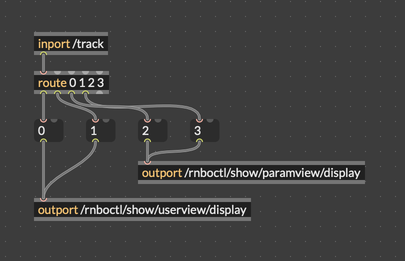
Let's put this in a small RNBO patch called track-view-map.
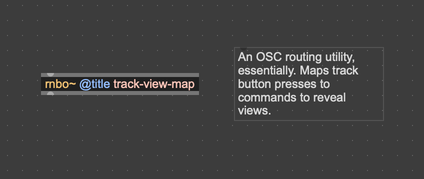
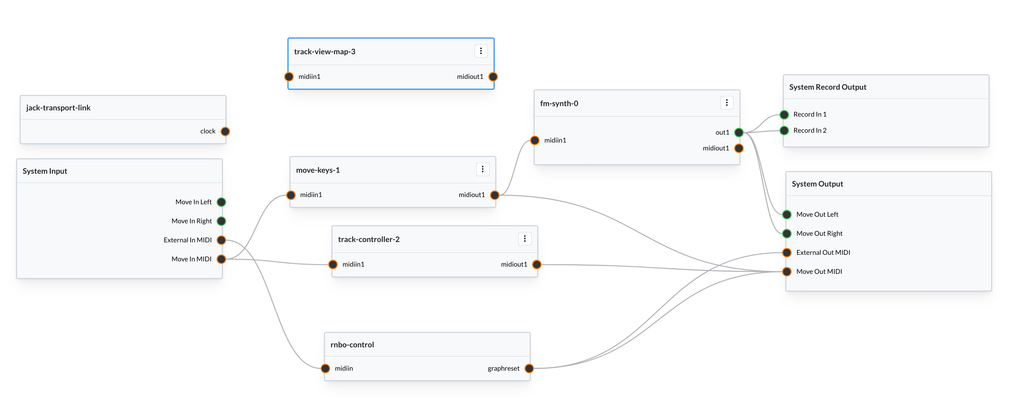
Export this and then add it to the graph. You don't actually need to do anything else—everything is routed with OSC, so we don't need to worry about MIDI or audio connections.
Putting It All Together
Once the patch is exported to the Move, you'll have:
- A polyphonic FM synth playable from the Move's pads (via move-keys)
- Pad lighting that reflects the current note layout (via track-controller)
- Two animated User Views — one showing the envelope shape, one showing the LFO waveform — both updated live
- Track buttons that switch between the two views without interrupting playback
Here we're really flexing a lot of what the Move has to offer. It's worth pausing to review all the pieces that are working together here:
- Putting multiple RNBO nodes together in one graph
- Routing MIDI input from the Move
- Controlling the LEDs in different zones using MIDI sysex
- Synthesizing audio using RNBO
- Drawing to the Move display using codebox in RNBO
- Using OSC to communicate between RNBO nodes
Hopefully you're starting to get a sense of what's possible with the Move. We're got a lot of components here, but really we're still just scratching the surface. With these basic ideas, there's still a ton of ground to explore.